

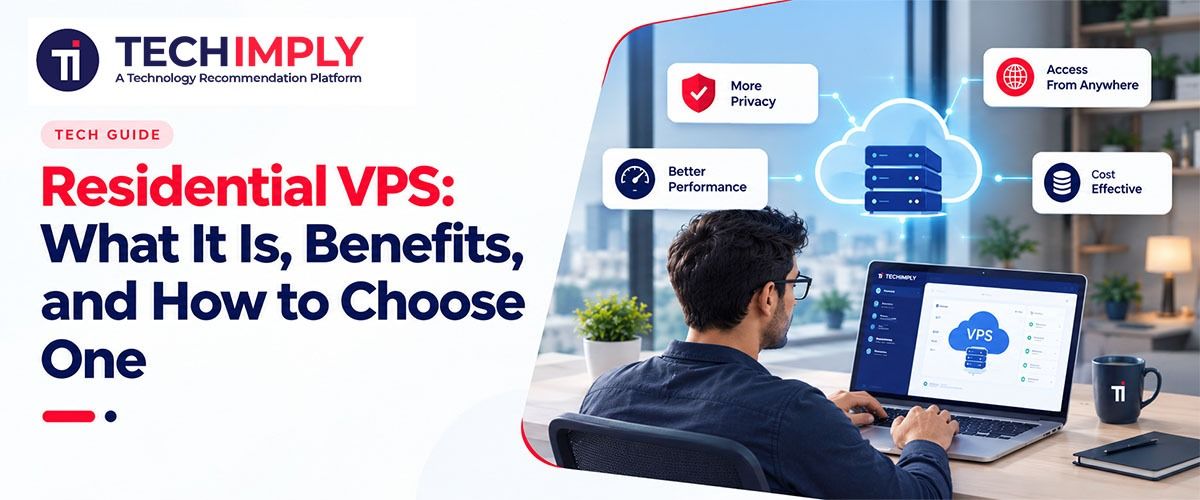
A residential VPS is a virtual server that uses a standard home IP address from providers like AT&T or Verizon instead of a commercial data center. When you run automated tasks on standard cloud hosts like AWS, your server often stands out to security filters. Websites can block you almost instantly because their security systems spot your data center IP address and flag it as a bot.
A residential VPS, however, gives you the 24/7 computing power of a virtual server and an IP address registered to home internet providers, helping you blend in with everyday web traffic. While a residential VPS won’t shield you from blocks entirely, it does remove one of the easiest reasons to get flagged. Below, we go over how a residential VPS works, where it helps, and how to choose the right one for your setup.
What is a Residential VPS?
A residential Virtual Private Server (VPS) is basically a tech hybrid built from two pieces:
1. The Machine: Dedicated remote hardware with its own CPU, RAM, storage, and full root or admin access.
2. The Network: An outgoing IP address issued by a consumer Internet Service Provider (ISP) rather than a commercial data center host.
The physical server itself almost always sits in an enterprise data center rack. The “residential” label comes strictly from the assigned network address. Put simply, when you buy residential VPS, you run automated tools without constantly triggering security alarms.
Even so, modern security systems like Cloudflare look beyond just your location. They analyze how your browser behaves and flag unnatural patterns. A residential VPS gives you a massive head start, but smart setup still matters.
| Network Type | Digital Label | Anti-Bot Trust Level |
Typical Use Case |
| Standard Cloud VPS |
Data Center (DCH) | Low (Flags bots) | Basic web hosting, internal tools |
| Residential VPS | Home Internet (ISP) | High (Looks human) |
Smooth data scraping and automation |
| Mobile Proxy | Mobile Carrier | High (Looks human) |
Routing external requests on the go |
Ultimately, borrowing a household internet provider’s reputation gives your server the built-in trust and privacy of a regular home. It’s often the cleanest way to blend in to normal web traffic and get the job done.
Why Use a Residential VPS for Automated Workflows?
More than 53% of all web traffic now comes from automated bots, officially outnumbering human traffic (which sat at 47%). To fight back, modern websites have put up sophisticated security filters, flagging or blocking traffic that comes from standard data centers.
If you run automated tasks, switching to a residential VPS plays a big role in bypassing some of these security measures. Here’s how it keeps your workflows moving:
1. Blend In with Everyday Web Traffic
Security tools look at data center IP addresses with immediate suspicion. When you route your traffic through a residential VPS, your server uses a real consumer internet provider. To the website you are targeting, you look like a regular person browsing from home, which means fewer frustrating CAPTCHAs and blocks.
2. Keep Your Tools Running Round-the-Clock
Running automation from your personal laptop isn’t practical. If your computer sleeps or loses Wi-Fi, your entire workflow breaks. A residential VPS lives in the cloud, meaning you can launch heavy monitoring tasks or overnight data pipelines, close your laptop lid, and know the work is getting done.
3. Maintain a Single, Trusted Identity
If you manage multiple accounts or regional dashboards, constantly changing your location triggers security alarms and account locks. A static residential VPS gives you a permanent, unchanging network identity so you can log in safely session after session.
That said, a residential VPS isn’t without limits. If your automated browser moves too fast or behaves like a clumsy robot, websites will still block you. A clean network connection is only half the battle.
How to Choose the Right Residential VPS Setup
Before buying a residential VPS, use this quick checklist to ensure a provider’s setup can handle your daily workload.
- Test the IP address first: Don’t just take the provider’s word for it. Ask for a test IP before you commit. Run it through an online lookup tool to make sure it shows up as “ISP” (a real home connection) and not “DCH” (a flagged data center).
- Demand a dedicated IP: Make sure your residential address belongs to you and you alone. Shared IPs are a trap. If another user on your subnet gets banned, chances are, you get banned too.
- Match your specs to your system: Don’t underpower your machine. If you’re running lightweight Linux scripts, 2GB to 4GB of RAM works fine. If, however, you’re running Windows with heavy automation tools, aim for 8GB+ of RAM with fast NVMe storage.
- Align your location and timezone: Always pick a server region that matches your target market. If you need to access US-specific data, make sure both your IP location and your system’s clock match your target US state.
- Look past “unlimited” bandwidth: An “unlimited” plan on a slow, capped network will completely bottleneck your tasks. Look for providers that offer fast 1Gbps or 10Gbps port speeds.
- Run a real test drive: Basic speed tests rarely tell the whole story. Use the provider’s trial period or refund window to run your actual software. See how it performs against your target sites under a real workload.
Key Takeaways
A residential VPS bridges the gap between raw computing power and home network trust. By pairing dedicated hardware with the built-in trust of a home ISP connection, you keep your automated scripts running 24/7 without hitting constant blocklists. That said, a residential VPS won’t fix a sloppy setup. Before you buy, always look up the IP yourself, then test the server on your real workload.