

Click inside an ordinary PDF and the cursor lands between two letters. Try the same thing with a scanned file and nothing happens or the whole page is selected at once. The scan looks like a document to us, but to the computer it is still a photograph.

Looking for OCR software?
Check out Techimply's List of the Best OCR Software in India for your business.
This small difference creates a surprising amount of work. An accounts assistant may receive ten years of invoices that can be read on screen but cannot be searched. A school may have photographed admission forms with no practical way to copy the names. OCR software turns those pictures into a workable first draft, which is much quicker to check than typing every page from scratch. The sections below show what the technology actually does, how to convert an image to text, and where a human check is still worth the time.
What Is OCR?
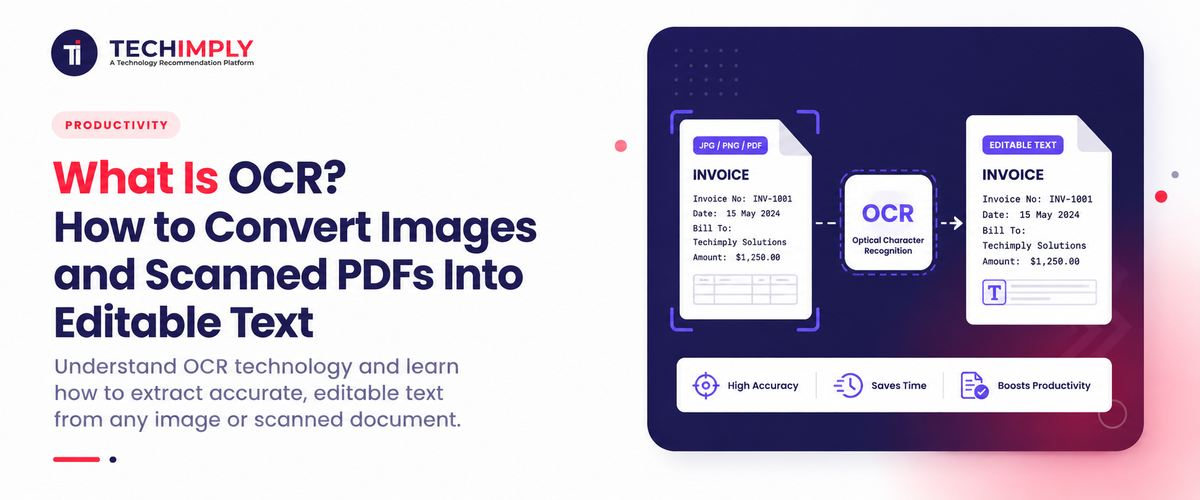
OCR is short for optical character recognition. The software studies the marks in an image, decides which ones are letters or numbers and creates real text from them. That new text can be searched, corrected or passed to another program.
A scanner handles appearance; OCR handles the words. The scanner records the page as it looks, including stains, stamps and crooked edges. Recognition software deals with the writing on that page. Depending on the output you choose, it may hide a searchable text layer behind the scan or produce a separate Word, text or spreadsheet file.
Consider an invoice with the number INV-1086 and a total of ₹12,450. Typing both fields is easy once. Repeating the job across several thousand invoices is not. OCR collects the likely values first, and the accounts team checks them against the original.
That is the useful answer to “what is OCR?” It gives a computer usable text where previously it saw only pixels. AWS explains OCR using the same basic idea: writing inside an image becomes machine-readable data.
How Does OCR Work?
An OCR engine does not tackle every page in one jump. It usually straightens the image first, separates text from the background and works out where each line begins. Only then does it compare the visible shapes with known characters. If one mark could be either 0 or O, the letters around it can help settle the choice.
Although products use different technology, the work can be understood in five parts:
1. Image capture
The page may arrive from an office scanner, a phone camera or even a screenshot. OCR tools commonly accept JPG, PNG, TIFF and image-only PDF files. Format matters less than clarity: a sharp page photographed from directly above is far easier to read than a blurred page taken from the side.
2. Image preparation
The software may rotate a tilted page, remove background noise, improve contrast and separate dark text from a light background. This preparation matters because shadows, blur and curved pages can make similar characters difficult to distinguish.
3. Text and layout detection
The OCR engine finds paragraphs, lines, words and sometimes tables, columns, checkboxes or form fields. Layout detection helps it understand whether content should be read from left to right, by column or as separate data cells.
4. Character recognition
At this point, the engine turns the detected shapes into characters. Better OCR software looks at the whole word and the selected language instead of judging every mark in isolation, which is why the correct language setting can improve the result.
5. Output and review
The recognised text is saved as editable text, a Word file, spreadsheet data or a searchable text layer within the original PDF. Good tools may highlight uncertain words so a person can review them.
The finished document may look convincing, but it is still the engine’s best interpretation of the page. A missing decimal point will not necessarily look suspicious. Names, dates, totals and contract wording deserve a quick comparison with the scan.
How Can You Tell Whether a PDF Needs OCR?
Try to select one word with your cursor. If you can highlight individual characters and paste them into a text editor, the PDF probably already contains digital text. If clicking selects the whole page as an image, the file likely needs OCR.
You can also use the search function. Search for a word that is clearly visible on the page. If the PDF viewer finds nothing, the document may be image-only. Be careful, though: a file can contain an incomplete or poor-quality text layer, so selection and search tests are useful but not perfect.
Adobe’s OCR guidance recommends the same basic selection test for identifying scanned text. PDFs are sometimes assembled from several sources, so one page may behave normally while the next is only a photograph. Try the selection test on two or three pages before deciding that the whole file is searchable.
Turning One Image Into Text You Can Edit
With one photograph or screenshot, keep the job simple. Open the clearest copy in an image to text converter, select its language and let the tool read it. Place the result beside the picture while checking names, figures and unusual spellings; those are the details most likely to matter later.
Menus and button names change from one product to another. The work itself is much the same:
- Choose the source image. Use the clearest original JPG, PNG, TIFF or screenshot available. Avoid repeatedly compressed images taken from messaging apps when you have the original file.
- Crop the page. Remove the desk, fingers, borders or unrelated objects around the document.
- Straighten and improve it. Correct the page angle and increase contrast if the text is faint.
- Select the document language. Correct language selection improves recognition of spelling, accents and character sets.
- Run OCR. Let the tool analyse the page and extract its text.
- Review the output. Compare important fields with the source image.
- Save it where it will be useful. Copy a short passage, choose DOCX for editing, use XLSX for table data or keep a searchable PDF.
An online tool is often fine for a clear restaurant menu or a short public notice. Payroll records, contracts and customer forms deserve more care. For those files—or for hundreds of pages at once—use approved desktop or business OCR software with suitable storage, deletion and review controls.
Making a Scanned PDF Editable
A long PDF is easier to handle in PDF software that has OCR built in. Open a copy, choose the page range and set the correct language before starting recognition. At the end, you can keep the original appearance with search added or export the words into a file you can rewrite.
The following routine works well for most scanned documents:
- Put the original aside. Work on a copy so you can always return to the unaltered scan.
- Check the tool before uploading. It should accept multi-page PDFs, support the document’s language and offer the output you need.
- Choose all pages or a page range. Processing only the necessary pages saves time.
- Set the language and layout. If available, specify whether the document contains columns, tables or forms.
- Start text recognition. The software will create either extracted text or an invisible searchable layer over the page image.
- Check the difficult areas. Review totals, serial numbers, proper names, signatures, stamps, small footnotes and table columns.
- Pick an output for the next job. Keep a searchable PDF for an archive, choose DOCX when paragraphs need rewriting, and use XLSX or CSV when the useful information sits in a table.
Moving a scanned PDF to editable text rarely preserves every design detail. Columns may drift, captions can move and an uncommon font may be replaced. If the page must remain visually identical, leave the scan in place and add search behind it.
Searchable PDF or Editable File?
The next task should decide the format. For records that only need to be found and read, a searchable PDF is usually enough. Choose an editable file when someone needs to rewrite paragraphs, reorganise a table or reuse the text elsewhere.
|
Output |
Best for |
Main limitation |
|
Searchable PDF |
Archives, contracts, records and document search |
The visible page may still be an image |
|
DOCX |
Editing paragraphs and recreating documents |
Columns and spacing may shift |
|
XLSX or CSV |
Invoices, tables and repeated fields |
Table recognition requires careful review |
|
TXT |
Fast extraction and simple search |
All visual formatting is removed |
For an archive, adding OCR to the existing pages is usually enough. You can search for a name or reference number without rebuilding the document. If the next person needs to rewrite whole sections, export an editable copy and allow some time to clean up the formatting.
Why Do Some OCR Results Contain Mistakes?
Image quality, language, layout and print clarity have the greatest effect on OCR accuracy. A tool cannot reliably recover details that are missing from the source.
For better results:
- Start with a clear scan. For ordinary printed pages, about 300 dpi is a sensible baseline.
- Lay the paper flat rather than holding it at an angle to the camera.
- Move the light if it creates a bright patch or a shadow across the words.
- Zoom in before processing. If the letters look soft to you, they will also be difficult for OCR.
- Select the correct language before recognition.
- Process the original file instead of a screenshot of a screenshot.
- Separate pages with very different orientations or layouts when necessary.
- Review tables one column at a time.
Low contrast can turn punctuation into random marks. A folded page may break a line. A dirty scanner can create repeated dots. Even clean documents can contain ambiguous characters, such as 1, I and l. Never judge OCR quality only by how convincing the output looks.
Where Does OCR Save the Most Time?
OCR earns its keep when a team has plenty of scanned information but no practical way to search or reuse it. Instead of retyping a page from the beginning, a person reviews and corrects a machine-made draft.
The practical gains are easy to notice:
- An accounts team can review extracted invoice details before sending them to data entry software.
- Staff can search an archive for a customer name or reference number in seconds.
- Old text can be corrected, quoted, translated or moved into another system when the editable original has disappeared.
- A recognised text layer can help screen readers, although headings, reading order and other accessibility work may still be required.
Where Can OCR Let You Down?
OCR can remove a great deal of typing, but it cannot repair information that the camera never captured clearly. These are the weak spots you are most likely to notice:
- Fuzzy or decorative print can fool it. A blurred 8 may become a 3, while a faint word may disappear altogether.
- Busy layouts are harder to rebuild. Multi-column pages, tables and footnotes sometimes return in an odd reading order.
- Handwriting remains unpredictable. Neat block letters may work well; joined-up writing varies from one person to the next.
- Language coverage differs. Test the exact script and language mix in your files rather than relying on a long “supported languages” list.
- Uploads can create a privacy problem. Do not send customer, health or financial records to a service unless its storage and deletion terms meet your needs.
- Important output still needs a second pair of eyes. An invoice total or contract date should be checked against the scan.
- Large jobs may cost more than expected. Batch tools, integrations and field extraction can require a paid plan or development work.
Use more review where an error would cause more harm. A typo in personal notes is annoying; a wrong digit in a bank account or medicine instruction is a different matter.
Choosing OCR Software: What Should You Look For?
Do not begin with the accuracy percentage on a sales page. Begin with two or three documents that look like the files you handle every week, including at least one difficult example.
During the trial, find out:
- whether it reads the languages and scripts your customers actually use;
- how it behaves with a long, multi-page scanned PDF;
- whether table columns and the normal reading order survive the conversion;
- which files it can create, such as Word, Excel, CSV, or searchable PDF;
- whether a large folder can be processed together;
- what happens to an uploaded file after you finish;
- whether uncertain words are easy for a reviewer to find;
- and whether it fits your scanner, storage, and document management software.
Judge the result by the fields that matter. If your staff needs invoice totals, test totals. If they need names in Gujarati and English, include both. A broad accuracy claim tells you much less than a small trial built around your real work.
Is OCR Worth Using?
For most scanned records, yes. OCR can turn a frustrating folder of pictures into an archive that people can search, quote, and update. It is especially useful when the alternative is hours of manual typing.
Give it the clearest source you have, choose the output for the task, and check anything that carries real consequences. Optical character recognition works very well with clean print. The sensible role for it, though, is to prepare the draft while a person remains responsible for the final details.
Conclusion
OCR offers a practical way to turn images and scanned PDFs into searchable, editable text, saving hours of manual typing and making valuable information easier to reuse. The best results come from using clear source files, selecting the correct language and choosing an output format that suits the task. However, OCR is not always perfect, particularly with handwriting, complex layouts or low-quality scans, so important details such as names, dates, totals and account numbers should always be checked against the original document. With the right OCR software and a careful review process, businesses can manage scanned records more efficiently while improving document accessibility, accuracy and productivity.