



Most guides about switching CRM software stop at one line of advice: back up your data. That advice is fine, but it hides the real problem. When a team exports contacts and deals, imports them into new CRM software, and sees roughly the right number of records show up, the migration looks finished. It usually isn't. The obvious fields move without much fuss: names, emails, phone numbers, deal amounts. What breaks is everything holding those fields together. The link between a contact and the company they work for. The two years of call notes on an account. The picklist value had a home in the old system and none in the new one, so it lands as blank. Nobody notices on day one. A sales rep notices three weeks later when they open a record and the history is gone.

Looking for CRM software?
Check out Techimply's List of the Best CRM Software in India for your business.
This checklist is about that fragile layer, the stuff that doesn't announce itself when it disappears. It's the list most migration articles skip, organized so you can hand it to whoever is running the export and know they've checked the parts that actually cause pain later.
|
Data type |
Moves cleanly via CSV? |
What breaks |
What to do |
|
Standard fields (name, email, phone, amount) |
Yes |
Little, these are the safe parts. |
Nothing special |
|
Relationship links (contact ↔ company ↔ deal) |
No |
Records import as disconnected orphans |
Export Company, contact, and Account IDs as association columns |
|
Activity history (calls, emails, notes, tasks) |
Rarely |
The timeline is lost; some platforms block CSV import entirely |
Export activity tables separately and confirm destination accepts them |
|
Custom fields & picklists |
Partially |
Unmatched dropdown values import blank silently |
Build field lists, align values, and test a small batch |
|
Email flags (unsubscribe, bounce) |
Sometimes |
A dropped opt-out flag becomes a compliance risk |
Create opt-out/bounce mappings in the new system and verify after import |
|
Pipeline stage & probability |
Partially |
Deal stage names and win probabilities can break forecasts |
Map old stages to new ones and carry probabilities across |
|
Attachments & files |
No |
Files do not move; records point to nothing |
Plan API export, manual re-upload, or external file links |
|
Workflows & automations |
No |
Logic must be rebuilt; it cannot be imported as data |
Rebuild workflows natively, then test each trigger and action |
The Data That Quietly Disappears During a Migration
A migration is really a translation, expressing one system's model of your customers in another system's model. Fields translate cleanly. Relationships and history are where meaning gets lost, so those are the categories worth slowing down for.
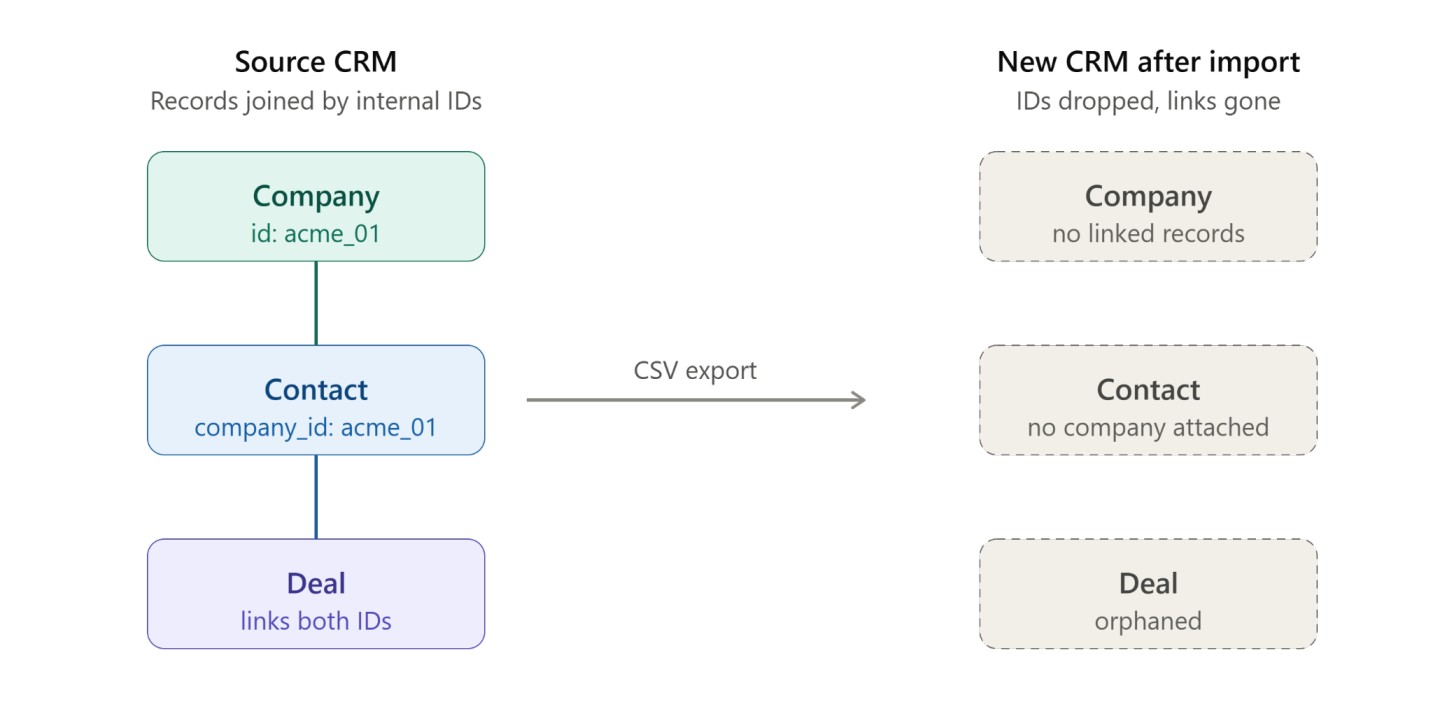
Relationship links between records
This is the first thing to break and the hardest to spot. In your source system, a contact is tied to a company, a deal is tied to both, and sometimes an account sits inside a larger parent account. Those connections aren't really "fields" you can see in a spreadsheet. They live underneath, as internal IDs the CRM uses to know which record belongs to which.
Export to CSV and those hidden IDs often don't come along in a usable form. So you import a clean list of contacts, a clean list of companies, and the new CRM has no idea they were ever connected. You end up with a database full of orphans. The fix is to treat association columns as mandatory: figure out how the old system stores its Company ID, Contact ID, and Account ID, and make sure those keys ride along with the export so the new system can rebuild the joins. Good contact management software leans heavily on those links being intact, because a contact record with no company attached loses most of its usefulness the moment a rep tries to work from it.
Parent and child account hierarchies deserve a mention. If your old CRM tracked headquarters versus branch offices, or a reseller versus the end customers underneath it, and your new CRM models that differently, the hierarchy can flatten on import. Every branch becomes a standalone account with no sense of who it reports to.
Activity history
Emails, calls, meetings, tasks, notes. This is the record of every conversation your team has had, and it is among the most commonly lost items in any move. Partly because activity data often lives in a separate table from the contacts themselves, and a basic export grabs the contacts but forgets the timeline.
It gets worse when the old system stored emails as activities pulled in from an integration, like a connected Office 365 or IMAP inbox. Those threads may not be yours to export cleanly at all. Call logs with their duration and outcome, completed tasks, free-text notes typed onto a deal before a big meeting: all of it can slip through if you only export the primary objects.
There's a hard limit worth knowing about. HubSpot's own community documentation notes that you cannot import activities or notes into HubSpot via CSV, and deals have to be imported separately and then re-associated to their companies and contacts afterward. That's not something you can format your way around. It's a platform constraint, and if activity history matters to you, it changes how you plan the move. Confirm early whether your destination even accepts activity imports, include the activities, tasks, and notes tables explicitly in your export, and after import spot-check that timestamps, owners, and the links back to the right contact all survived.
Custom fields and picklist mismatches
|
Source field type |
Map to (new CRM) |
Failure if mismatched |
|
Text |
Text |
Truncation on shorter character limits |
|
Dropdown / Picklist |
Dropdown, values aligned |
Unmatched value imports a blank. |
|
Multi-select |
Multi-select |
Collapses to a single value |
|
Date |
Date, format + timezone checked |
Shifts by a day or lands in the wrong month |
|
Number / Currency |
Same type + currency |
Currency mismatches corrupt amounts |
Every CRM accumulates custom fields. The dropdown your ops team added for "lead source detail." The multi-select for product interest. The text field someone created for an old campaign and never removed. None of these exist by default in a new system, and this is where data goes blank without any error message at all.
The quiet failure mode is the picklist mismatch. Say your old CRM has a status dropdown with a value called "Nurturing." Your new CRM has a similar dropdown, but its values are "Nurture," "Active," and "Cold." On import, "Nurturing" matches nothing. The system doesn't stop and ask. It just leaves the field empty, and you find out later when a segment that should have thousands of people in it has a few hundred. This kind of drift is exactly what a well-run lead management software setup depends on getting right, because a lead status that imports as blank pulls that person out of every workflow keyed to it.
The defense is to export a schema list before anything else: every custom field, its data type, and its allowed values. Then build those fields in the new CRM and match the data types deliberately. Text-to-text. Dropdown to dropdown, with the values aligned. Multi-select to multi-select. Then run a small test batch specifically to see which fields come out empty, because a test import of fifty records will surface a mapping problem that a full import would bury under fifty thousand.
Identity and tracking fields
These are boring right up until you need them, and then they're the only thing that matters: the internal record IDs your source CRM uses, external IDs that tie a record to your ERP or marketing automation platform, and the compliance-critical email status flags like hard bounce, unsubscribe, and spam complaint.
Lose the internal IDs and you lose the ability to trace a record back to its origin when something looks wrong six months later, so park the old system's IDs in a dedicated "legacy ID" field where the trail never goes cold. The email flags are the ones that can actually get you in trouble. If someone hit unsubscribe in your old system and that flag doesn't migrate, your new CRM sees a fresh, mailable address, you email them, and now you've got a compliance problem and a deliverability hit because a single boolean didn't come across. Make opt-out and bounce flags a named line item and confirm the new email tool respects them once they land.
Pipeline and revenue fields
Anything that feeds a forecast needs care because errors here stay invisible until a report comes out wrong: pipeline stage, status, and probability; close date, expected close date, and create date; amount and currency, which matter enormously if you run more than one currency.
Stage names are a mapping exercise. Your old "Qualified / Proposal / Negotiation / Closed Won" has to map to whatever the new pipeline calls those stages, and the probabilities attached to each need to come along or your weighted forecast is nonsense. Dates are a formatting trap: a close date can shift by a day, or land in the wrong month entirely, if the two systems disagree on date format or handle time zones differently. Standardize date formats before you migrate and test explicitly for how the new system treats UTC versus local time. A clean sales pipeline management software deployment lives or dies on stage and probability data mapping across correctly, since a deal that imports into the wrong stage skews every pipeline report a manager looks at.
Ownership, teams, and permissions
Records need owners. Every contact, company, and deal is assigned to someone, and that assignment drives who sees what, who gets the follow-up task, and whose number the deal counts toward. User IDs don't automatically map between systems, so "Assigned to: Priya" in the old CRM has to resolve to the right Priya in the new one, usually matched on email. Territory and team fields ride along with this, since they drive routing and reporting. And role-based visibility, the rules about which users can see which records, generally does not transfer on its own; it needs rebuilding in the new system's permission model, worth scoping before go-live rather than discovering afterward when someone can see accounts they shouldn't.
Attachments and linked files
Contracts, signed proposals, NDAs, images embedded in notes. Files linked to your records almost never move in a plain CSV export, because a CSV holds text, not documents. The file lives somewhere else, and the record just points to it. Decide the approach up front: some systems let you pull attachments through an API or a separate file export, others don't, and you're then choosing between re-uploading the important documents by hand or leaving them in an external repository and linking out. Neither is wrong, but the decision needs to be made before the cutover, not during it.
Automation and system metadata
This is the least visible layer, and it drives behavior. Whether a contact is currently sitting in a nurture sequence. Their lead score and the criteria behind it. Which segments and lists they belong to. These aren't customer facts, exactly. They're the machinery state that decides what happens to a record next.
Most of it won't migrate as data, and some of it shouldn't. Workflows and automations generally have to be rebuilt in the new CRM rather than imported. Where a value can be exported as an explicit field, like a lead score, do that. Then rebuild the automations natively and, the part people skip, run a sample record through each one to confirm it triggers. A migration that moves the data but leaves every automation dormant just means your team is doing manual work they didn't have to. Pulling this segmentation and behavioral data together is exactly the job a customer data platform is built for, and it's worth mapping how that layer will be reconstructed before you commit to the switch.
What the Official Vendor Guides Actually Say
It's worth grounding all of this in what the major CRM software vendors publish themselves, because their official guidance converges on the same themes even without a single cross-platform standard.
HubSpot publishes a CRM Data Migration Import Checklist, and its structure is refreshingly concrete: export data or connect systems, clean the source data, define object mappings, prepare destination fields on each object, define field mappings, prepare import files with object associations, run a test import, then review the imported test objects for correct field mappings, associations, and engagement data. Two items are easy to underweigh. "Prepare destination fields on each object" means creating your custom properties in HubSpot before the import runs, not during. And "prepare import files with object associations" is HubSpot's own way of flagging the relationship-link problem this article opened with, since associations are the thing their process explicitly asks you to build into the files.
Zoho takes a slightly different shape because it ships an in-product data migration wizard, reached through Setup, then Data Administration, then Import. Where common modules exist, it maps your import files to Zoho modules automatically and aligns the columns to Zoho fields; where a module doesn't exist yet, it creates it. It also reports how many files mapped, how many didn't, and which aren't supported.
Zoho's HubSpot-to-Zoho path is worth a mention for anyone moving between those two because it's API-based rather than CSV-based. Their documentation walks through creating a private app in HubSpot with specific scopes for contacts, companies, deals, and owners; generating an API token, then entering the instance URL and token into Zoho's migration page. A couple of Zoho's own stated limits save real headaches: custom modules aren't supported in API migrations, and if a record has more than ten tags, only the first ten migrate. Zoho also builds in a safety valve, letting you delete the imported records and re-run the migration if you're unhappy with the field mapping, though only for a limited number of attempts, so validating early isn't just good practice, it's respecting a real cap.
The post-import step is identical across both vendors, and that's the tell. Both send you to an Import History view to confirm records populated correctly, and both stress spot-checking individual records against what you know to be true. When two competing platforms independently land on "run a test, then verify a sample by hand," it's because that step catches the failures nothing else does.
Cleaning and Deduplicating Before You Move
Here's the part it's tempting to skip under deadline pressure, and skipping it is why so many migrations just relocate a mess. The goal before you move anything is to turn the old CRM into a single, consistent source of truth, so you carry clean data into the new home instead of hauling the clutter across. Work it in three passes: audit, then clean and standardize, then deduplicate and merge.
Audit first and define what clean even means. Before touching a record, write down the rules. List your core objects and the minimum fields each needs to be usable at all. A contact with no email and no company probably isn't worth moving. Decide which fields are required, which formats are allowed for email and phone, and which free-text fields need standardizing. This gives you a yardstick to measure dirty data against, and without it "clean" is just a vibe.
Then clean and standardize. Flag or remove records with invalid emails, junk values like "test" and "asdf," or missing required fields. Standardize the formatting that later matching depends on: consistent casing, country and state abbreviations, and phone formats. For Salesforce users, address validation solution can also help identify inaccurate, incomplete, or outdated customer information before it is transferred to a new CRM. For companies, strip website fields down to bare domains and normalize company names to one style, because those become your matching keys. Fill in missing key fields through enrichment or research where the field matters for routing or segmentation. Doing this before dedupe is what stops the dedupe from throwing false matches.
Then deduplicate with rules, not gut feeling. Deduplication should be repeatable and written down, not something one person does by eye at midnight. Set match keys per object: email as the primary key for contacts, backed by fuzzy matching on name plus company for edge cases; website domain for companies, with cleaned name plus region as a fallback when a domain is missing. Keep exact matches (safe to auto-merge) separate from fuzzy ones (flag for a human). A combined key like domain plus state saves real pain, so you don't merge two genuinely different branches of the same national brand.
Then merge with clear winner logic. Decide which record survives: keep the one with the most fields filled, the most recent activity, or the furthest-along lifecycle stage, and merge the others into it. Merging beats deleting, because a merge consolidates the activities, notes, deals, and custom fields from every duplicate onto the surviving record, where a delete throws them away. Prefer merge-and-archive over hard deletes, and restrict who can bulk-delete anything at all.
Then stop the mess from coming back. Cleaning once accomplishes nothing if the new system refills with junk in a month. Make key fields required on forms and imports, validate email and phone formats at entry, and use the new CRM's automation to set lead source and surface records missing critical fields on a schedule. Give one person or team real ownership of data quality, with a cadence for reviewing duplicate rates and completeness. That's the difference between a migration that sticks and one you're redoing next year.
The Consolidated Checklist
Everything above, compressed into something you can actually work from. Run these in order.
Before you export
- Write your data hygiene rules: required fields, allowed formats, what counts as junk.
- Export a full schema list of every custom field, with its data type and allowed values.
- Decide your historical cutoff. Most teams only need the last two to three years of activity; archive the rest offline rather than dragging it across.
- Identify how relationship keys (company ID, contact ID, account ID) are stored so associations can survive the move.
Clean and deduplicate the source
- Remove or flag invalid emails, junk values, and records missing required fields.
- Standardize casing, phone, country, and state formats; reduce company websites to bare domains.
- Deduplicate using defined match keys: email for contacts and domain for companies, with fuzzy matching for edge cases.
- Merge duplicates onto a clear "winning" record, consolidating activities and notes rather than deleting.
Prepare the destination
- Create every custom field and property in the new CRM before importing, matching data types exactly.
- Align picklist and dropdown values between systems so nothing imports blank.
- Map old pipeline stages and probabilities to the new pipeline's equivalents.
- Map old user IDs to new users, usually by email, so ownership lands correctly.
Handle the fragile extras
- Include activities, tasks, and notes tables in the export explicitly, and confirm the destination even accepts them.
- Preserve original record IDs in a dedicated legacy ID field for traceability.
- Confirm opt-out, unsubscribe, and bounce flags migrate and are respected by the new email tool.
- Plan attachments separately: API export, manual re-upload, or external links.
Test, verify, then go live
- Run a small test import first, specifically to catch empty or mismapped fields.
- Spot-check a real sample of records by hand against what you know to be true.
- Confirm relationship links, activity timestamps, and owners survived in those sample records.
- Rebuild workflows and automations natively, and run a sample record through each to confirm it fires.
- Set entry validation and assign data-quality ownership so the new system stays clean.
Conclusion
A CRM migration is never really about moving the data everyone can see. It's about protecting the connections and the history underneath it, the parts that make the data mean something. Get those across intact, and your team trusts the new system from day one. Lose them quietly, and you spend the next quarter rebuilding trust one confused sales rep at a time. This checklist won't make a migration effortless, but it will make sure the expensive, hard-to-notice failures get caught while you can still do something about them.