


Learning how to double space in Word is one of those small skills that turns out to matter a great deal, especially if you are submitting an essay, a manuscript, or any document that has to follow a formatting standard. The good news is that it takes about three clicks once you know where to look. This guide covers every route: the toolbar button, the Paragraph dialog box, the keyboard shortcut, and how it all works on Windows, Mac, Word Online, and the mobile app.
It also tackles the single most common frustration, when your document still looks wrong after you have chosen Double, which most guides skip entirely. Everything below has been checked against current versions of Word, including Word 2016, 2019, 2021, and Microsoft 365, and where a step differs by version, that is noted.
What Is Double Spacing in Word?
Double spacing sets the vertical gap between each line of text to twice the height of a single-spaced line.
In Word, a paragraph is anything followed by a hard return, meaning wherever you pressed Enter. When you double space, you are setting the line spacing of the selected paragraph or paragraphs to 2.0.
The 2.0 setting is standard across almost every writing tool, so the same concept carries over if your team works in other document creation software alongside Word.
When Should You Use Double Spacing?
Double spacing is not just a stylistic choice, it is a requirement in many contexts.
The most common situations where you will need it include the following:
- Academic papers, since MLA, APA, and Chicago citation styles nearly all require double spacing throughout
- Manuscripts submitted to publishers or literary agents, who expect double spacing to make editing easier
- Legal documents and court filings, many of which mandate double or specific line spacing
- Drafts you plan to print and mark up by hand, where the extra space gives you room to write
- Any document where a teacher, editor, or reviewer has explicitly asked for it Formatting is only half of what a marker checks. Writers submitting academic work often run a final pass through Proofreading Software once the spacing is set, since the extra gap between lines makes errors easier to spot anyway.
How to Double Space in Word on Windows
Windows offers three reliable ways to double space, and all of them work when you need to know how to double space in Word 2016 and every later version.
Using the Line and Paragraph Spacing Button
Follow these steps in order:
- Select the text you want to change, or press Ctrl+A to select the entire document
- Click the Home tab on the Ribbon at the top of the window
- In the Paragraph group, find the Line and Paragraph Spacing button, which looks like a set of horizontal lines with an up and down arrow beside them
- Click the small arrow on that button to open the dropdown menu
- Click 2.0 from the list, and double spacing applies immediately
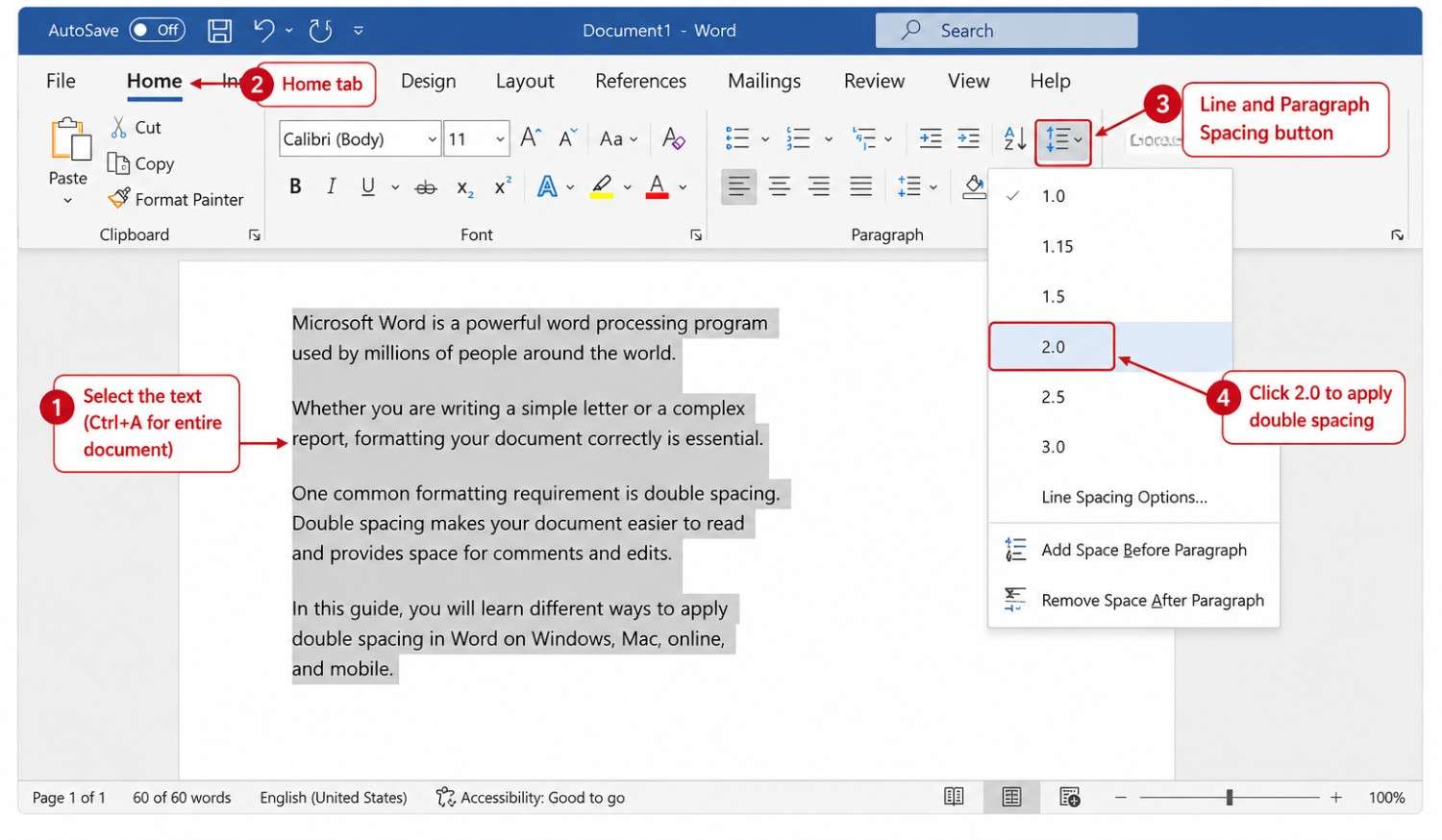
If you want to apply it to the whole document, the Ctrl+A step is the one that matters, since it highlights everything before you set the spacing.
Using the Paragraph Dialog Box
Here is the process:
- Select the text you want to format, or press Ctrl+A for the whole document
- On the Home tab, click the small arrow in the bottom-right corner of the Paragraph group to open the Paragraph dialog box
- Make sure you are on the Indents and Spacing tab
- Under Spacing, click the dropdown under Line spacing and choose Double
- Click OK to apply
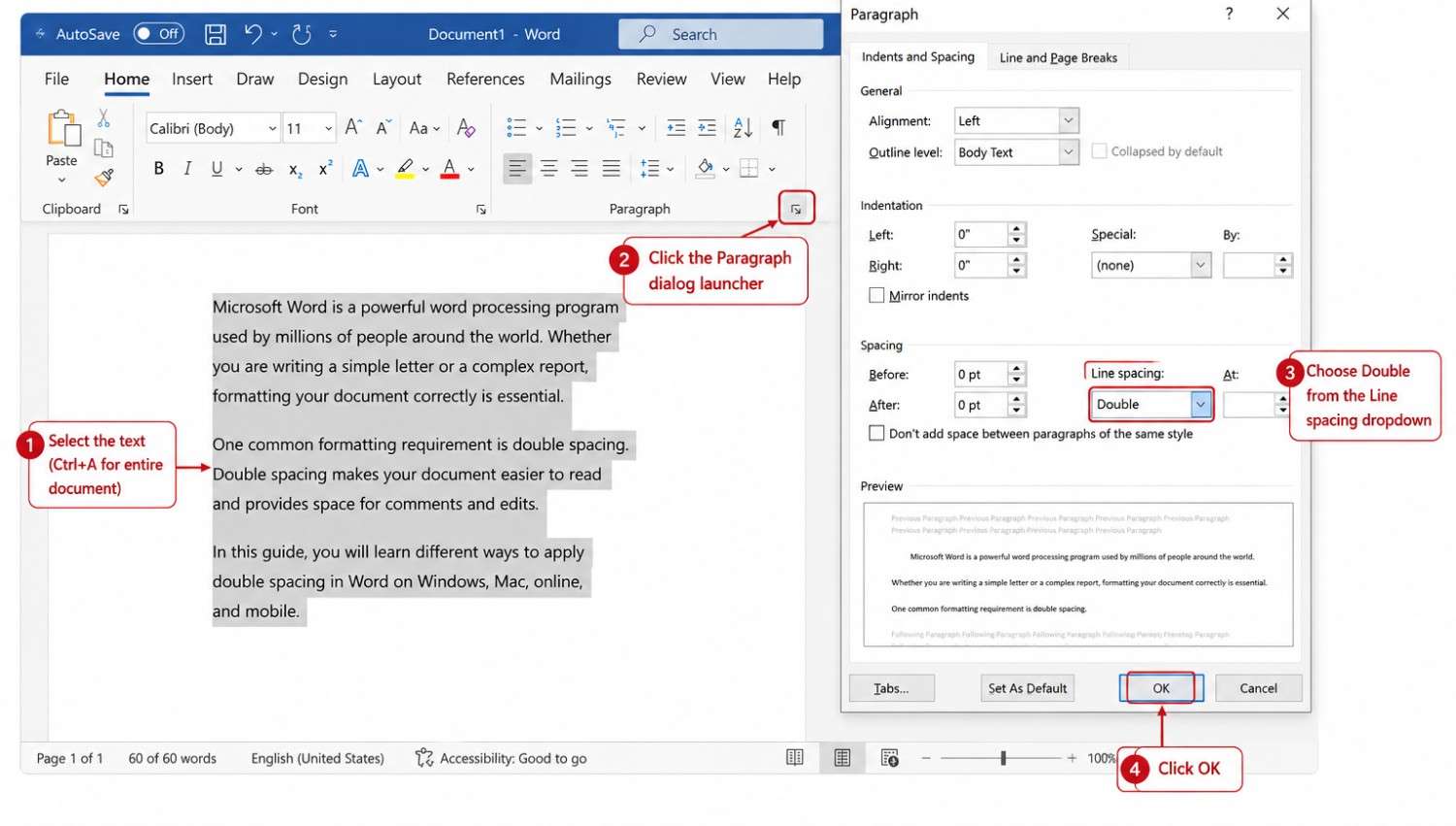
This method matters because the same dialog box also holds the Before and After spacing settings, which are the usual culprits behind spacing that looks wrong.
Using the Keyboard Shortcut (Ctrl+2)
If you prefer to keep your hands on the keyboard, this is the fastest option of all, and it is the double space in word shortcut most power users rely on.
The Ctrl+2 double space in word shortcut is the fastest route of all.
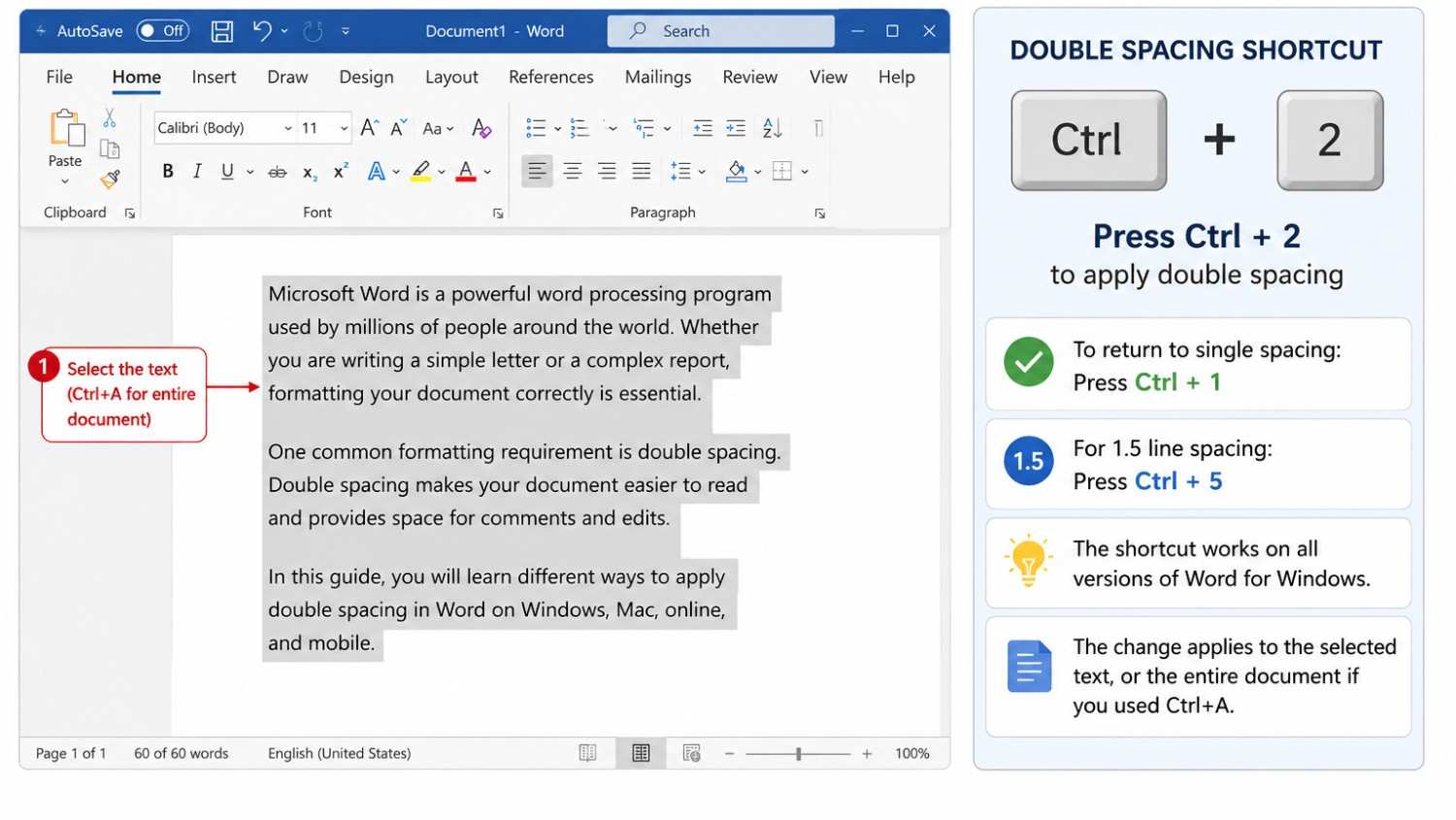
- Select the text, or press Ctrl+A to select everything
- Press Ctrl+2 to apply double spacing instantly
- To undo it and return to single spacing, press Ctrl+1
- For 1.5 line spacing, press Ctrl+5 instead
- The change applies to whatever text is selected, or to the whole document if you used Ctrl+A first
Every method above works identically in how to double space in word 2016 and every version since, so you do not need to worry about which build you have.
How to Double Space in Word on Mac
Toolbar and Paragraph Dialog Method
To double-space in Word on Mac using the menus:
- Select your text, or press Cmd+A to select the whole document
- Click the Home tab on the Ribbon
- In the Paragraph group, click the Line and Paragraph Spacing button, the icon with horizontal lines and arrows
- Choose 2.0 from the dropdown to apply double spacing
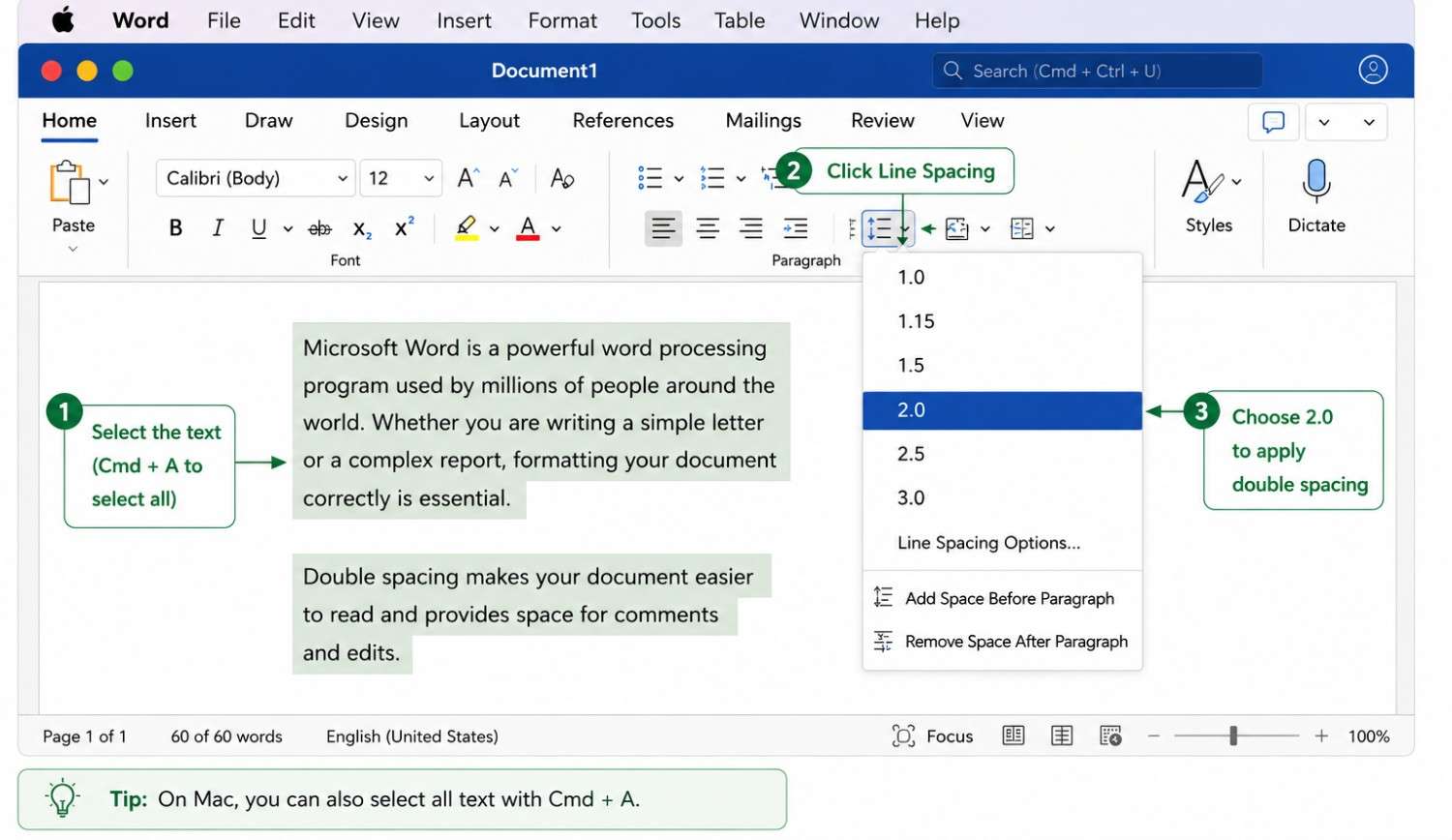
The Paragraph dialog on Mac carries the same Before and After spacing options as on Windows, so it is the place to go if your spacing looks off after applying Double.
Keyboard Shortcut (Cmd+2)
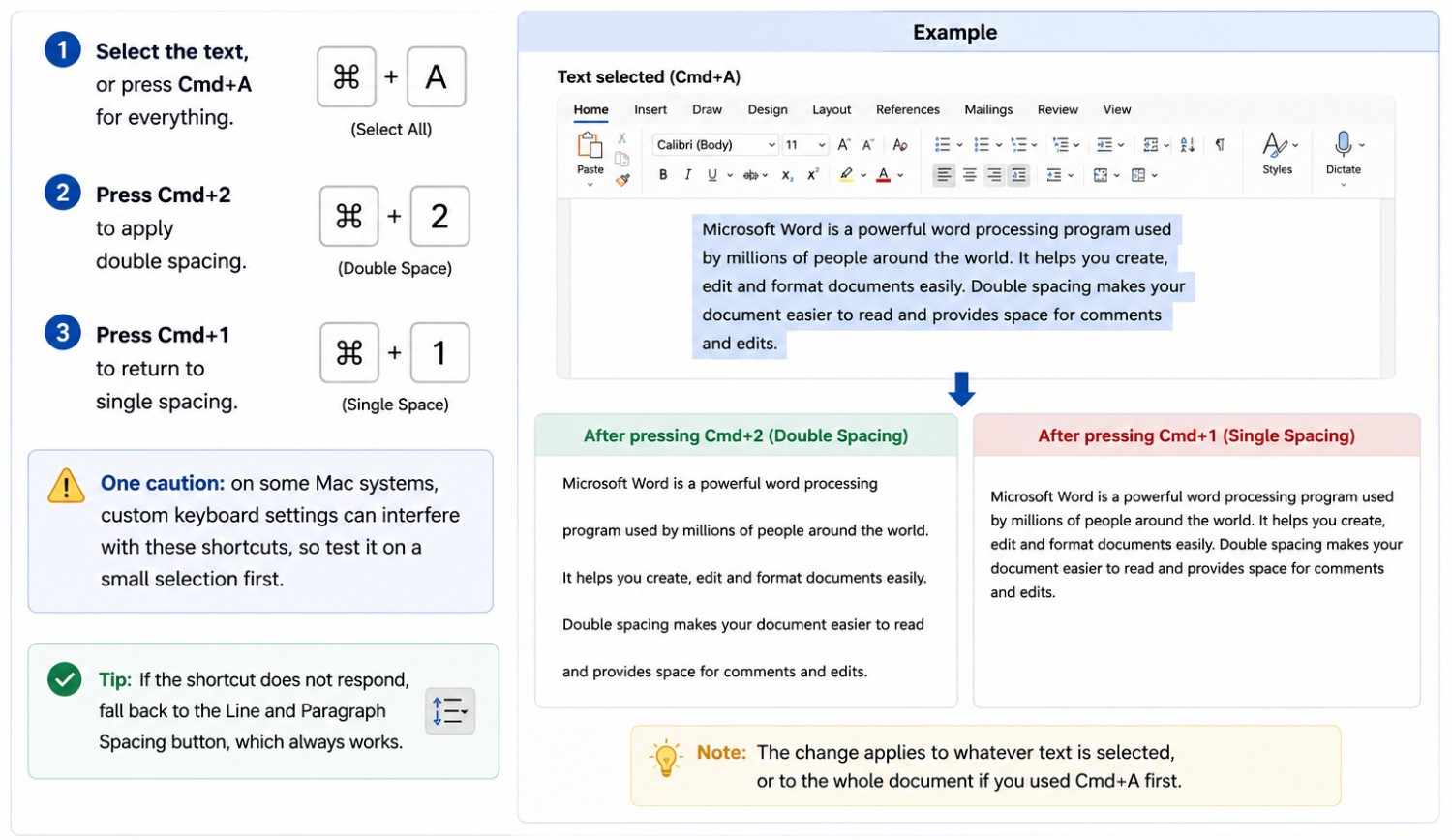
The shortcut works the same way as on Windows, just with the Command key.
- Select the text, or press Cmd+A for everything
- Press Cmd+2 to apply double spacing
- Press Cmd+1 to return to single spacing
- One caution: on some Mac systems, custom keyboard settings can interfere with these shortcuts, so test it on a small selection first
- If the shortcut does not respond, fall back to the Line and Paragraph Spacing button, which always works
How to Double Space in Word Online (Browser Version)
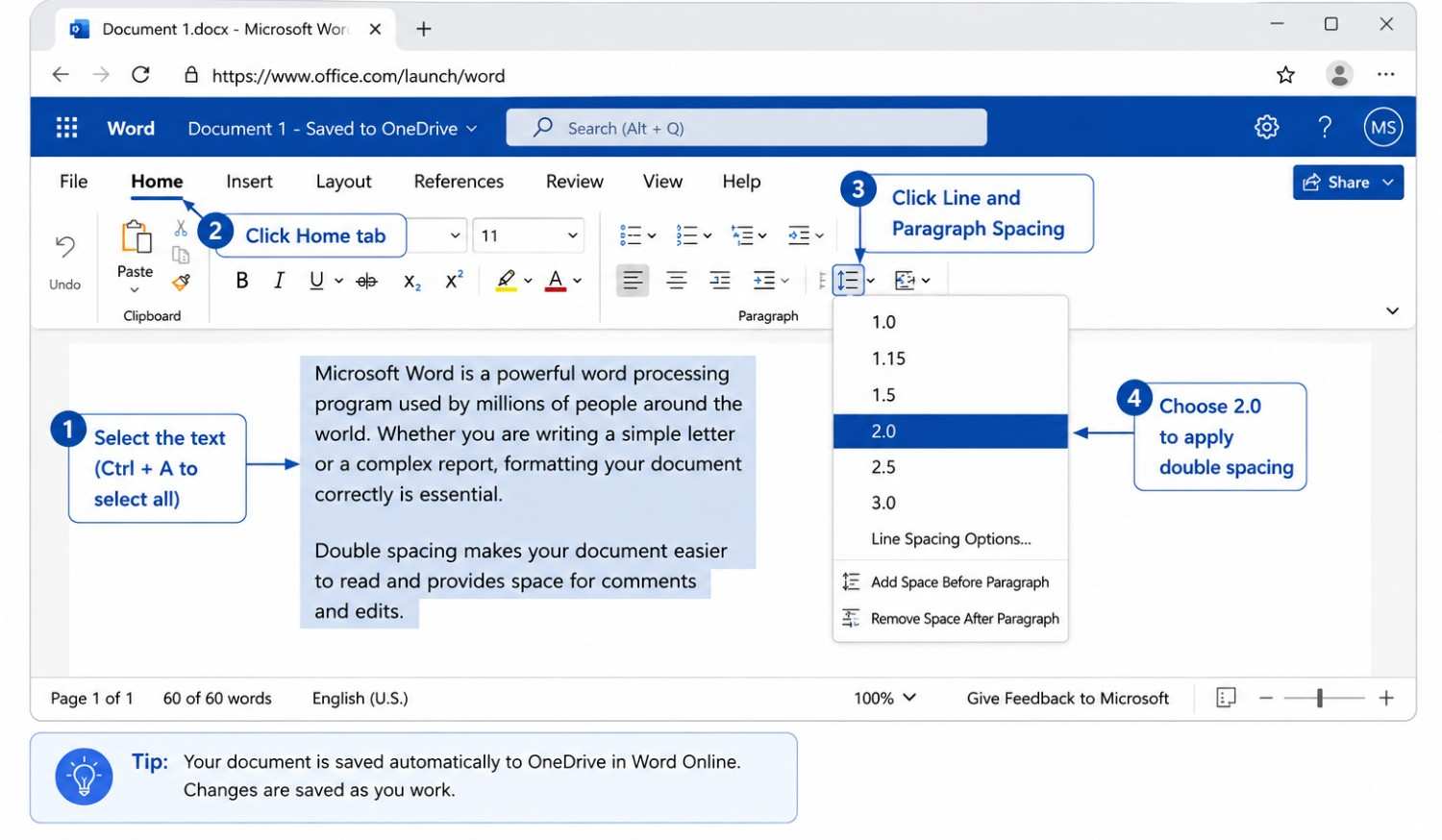
Word Online, the free browser version, handles double spacing well, and knowing how to double space in word online is useful when you are away from the desktop app.
Open your document in Word Online, then select the text you want to change or use Ctrl+A (Cmd+A on Mac) to select everything. On the Home tab of the toolbar, look for the Line Spacing button, which carries the same lines-and-arrows icon as the desktop version. Click it and choose 2.0 from the options. The spacing updates instantly, and because Word Online saves automatically, there is nothing further to do.
Teams that share drafts across the browser version usually pair it with content collaboration software so formatting stays consistent when several people edit the same file.
How to Double Space in the Word Mobile App
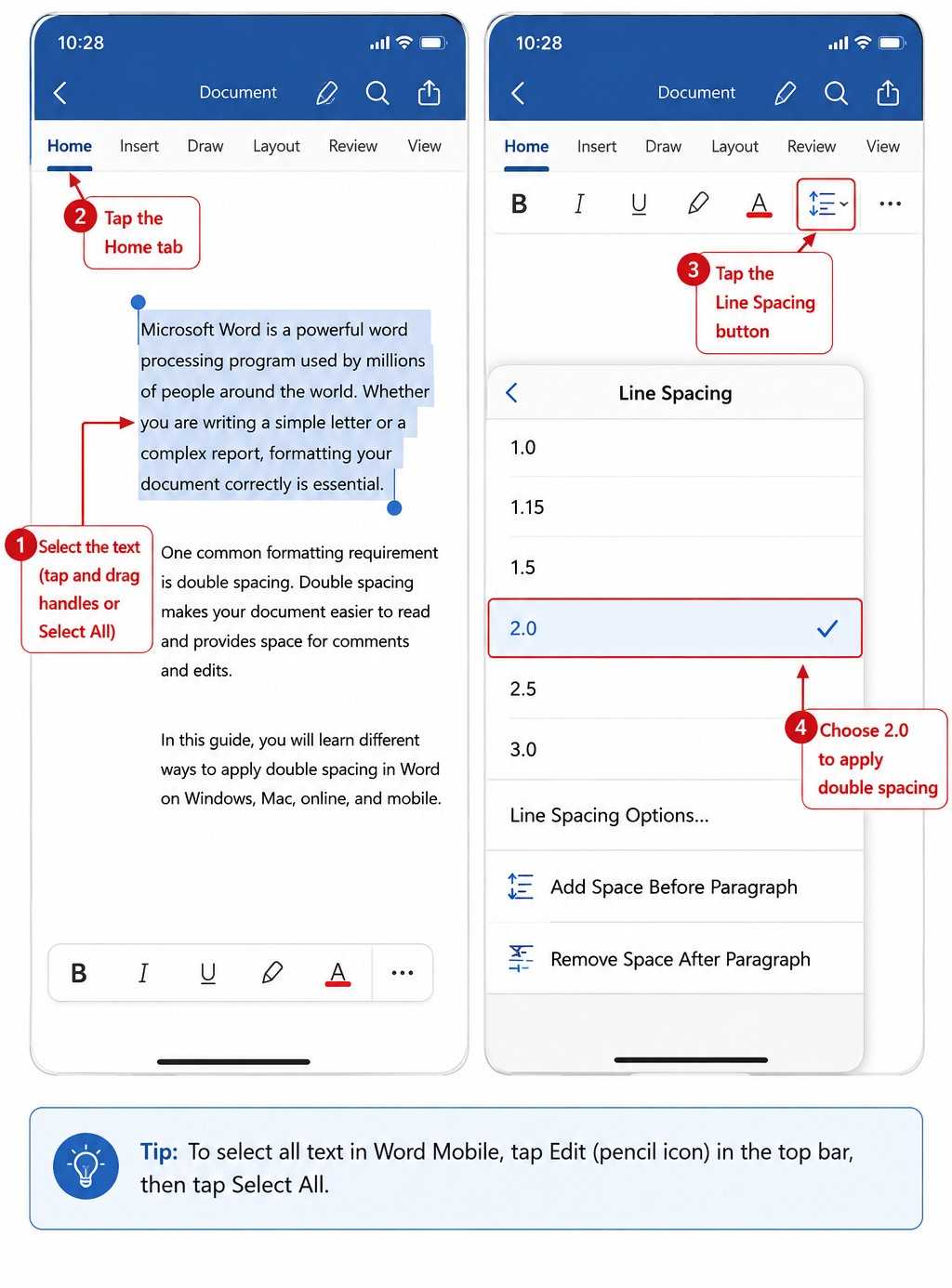
Open the document in the app and tap to place your cursor, or select the specific text you want to change. Tap the formatting icon, usually shown as a letter A with lines or a pencil-and-lines symbol, to open the formatting menu. Find the Paragraph or Line Spacing section, then choose the double or 2.0 option. The layout of these menus varies a little between the iOS and Android versions and between phone and tablet screens, but the spacing control is always within the paragraph formatting area.
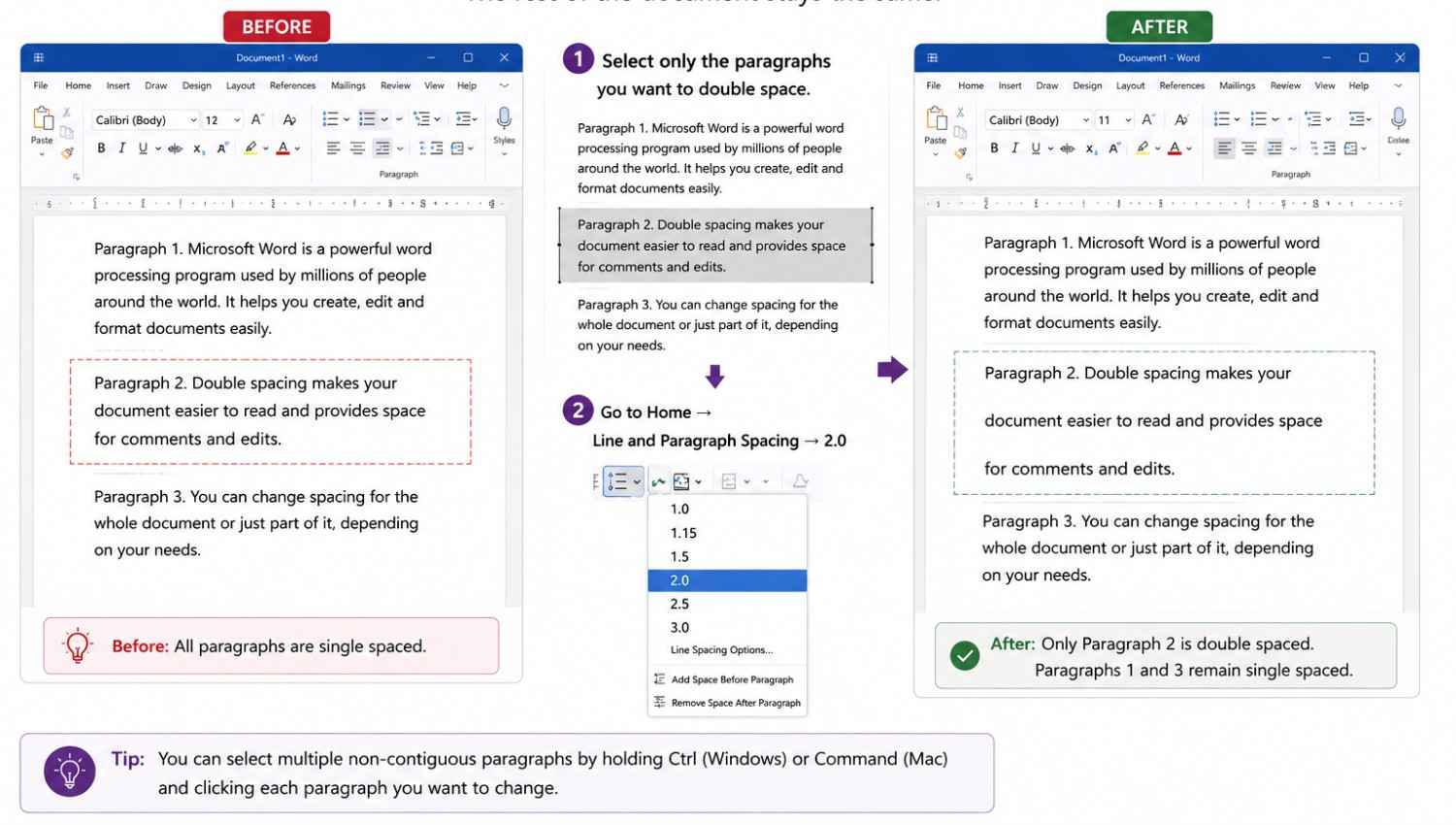
How to Double Space Only Part of a Document
You do not have to apply double spacing to everything.
The trick is simply what you select. Instead of pressing Ctrl+A to select the whole document, highlight only the specific paragraph or paragraphs you want to change, then apply any of the methods above, the Line and Paragraph Spacing button, the Paragraph dialog, or the Ctrl+2 shortcut. Only the highlighted text changes, and the rest of the document keeps its existing spacing.
How to Set Double Spacing as the Default for New Documents
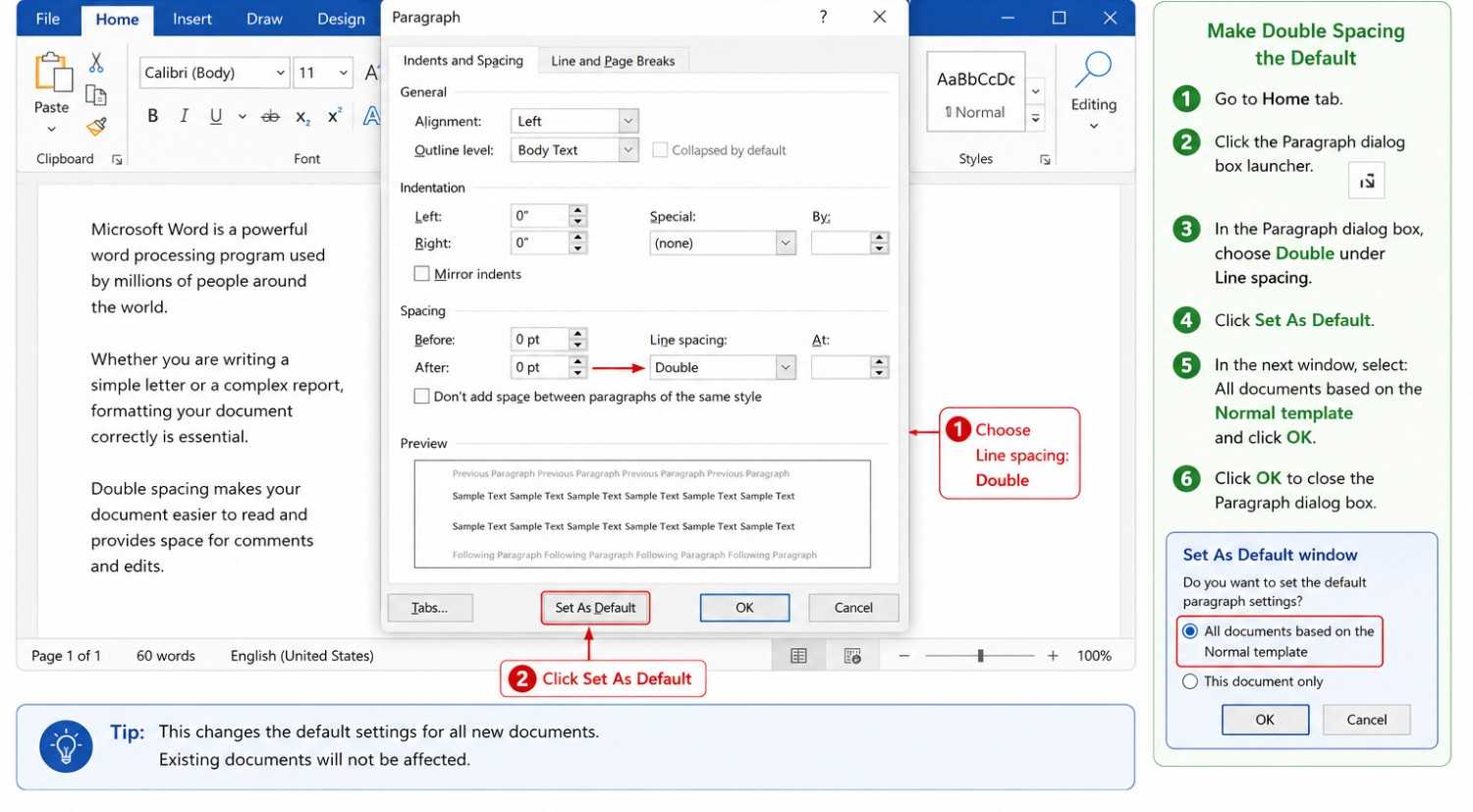
If you always write documents that need double spacing, setting it once as the default saves you from repeating the steps every time. This is how to set default line spacing in word so every new document opens ready to go.
Open the Paragraph dialog box from the Home tab by clicking the small arrow in the corner of the Paragraph group. Set the Line spacing to Double as usual. Then, instead of clicking OK, look for the Set As Default button at the bottom of the dialog box and click it. Choose the option for all documents based on the Normal template, and confirm. That is all there is to how to set default line spacing in word. From then on, new documents will start with double spacing already applied.
How to Remove Double Spacing
Removing double spacing is just as simple as adding it, and knowing how to remove double spacing in word is useful when you inherit a document formatted differently from what you need.
Select the text you want to change, or press Ctrl+A for the entire document. Then use whichever method you prefer: click the Line and Paragraph Spacing button and choose 1.0 for single spacing, or open the Paragraph dialog and set Line spacing to Single, or simply press Ctrl+1 as the keyboard shortcut. The double spacing is replaced immediately, which is all there is to how to remove double spacing in word.
Double Space vs. 1.5 Line Spacing: What Is the Difference?
This is the heart of the double space vs single space in word question that many writers face, with 1.5 sitting neatly between the two extremes.
Understanding double space vs single space in word, with 1.5 as the middle option, comes down to how much vertical gap each adds. Here is how they compare:
- Single spacing (1.0) places lines close together with no extra gap, best for letters, business documents, and anything where saving space matters
- Knowing how to do 1.5 line spacing in word gives you a comfortable middle ground that improves readability without using as much paper as double
- Double spacing (2.0) adds a full line of space between lines, required for most academic and manuscript formatting
- Double spacing uses noticeably more pages than 1.5, which matters when printing or meeting a page requirement
- The right choice depends on the requirement: use double when a style guide demands it, and 1.5 when you simply want a cleaner, more readable everyday document
If you want to know how to do 1.5 line spacing in word, the steps are identical to double spacing: you just choose 1.5 instead of 2.0, either through the Line and Paragraph Spacing button or the Ctrl+5 shortcut.
Common Mistakes to Avoid
Pressing Enter Instead of Using Spacing Tools
The most common mistake is trying to create space by pressing Enter twice between lines or paragraphs, rather than using the line spacing tools. Always use the proper spacing controls, and if you need to move to a new line without starting a new paragraph, press Shift+Enter instead of Enter.
Confusing Relaxed Spacing With True Double Spacing
The second common error is assuming that text which merely looks more spread out is properly double spaced. Set the line spacing explicitly to Double through the button or the dialog box, and do not rely on the document simply looking roomy, because a spacing check by a teacher or editor measures the actual setting, not the general impression.
Why Your Document Still Looks Wrong After Applying Double Spacing
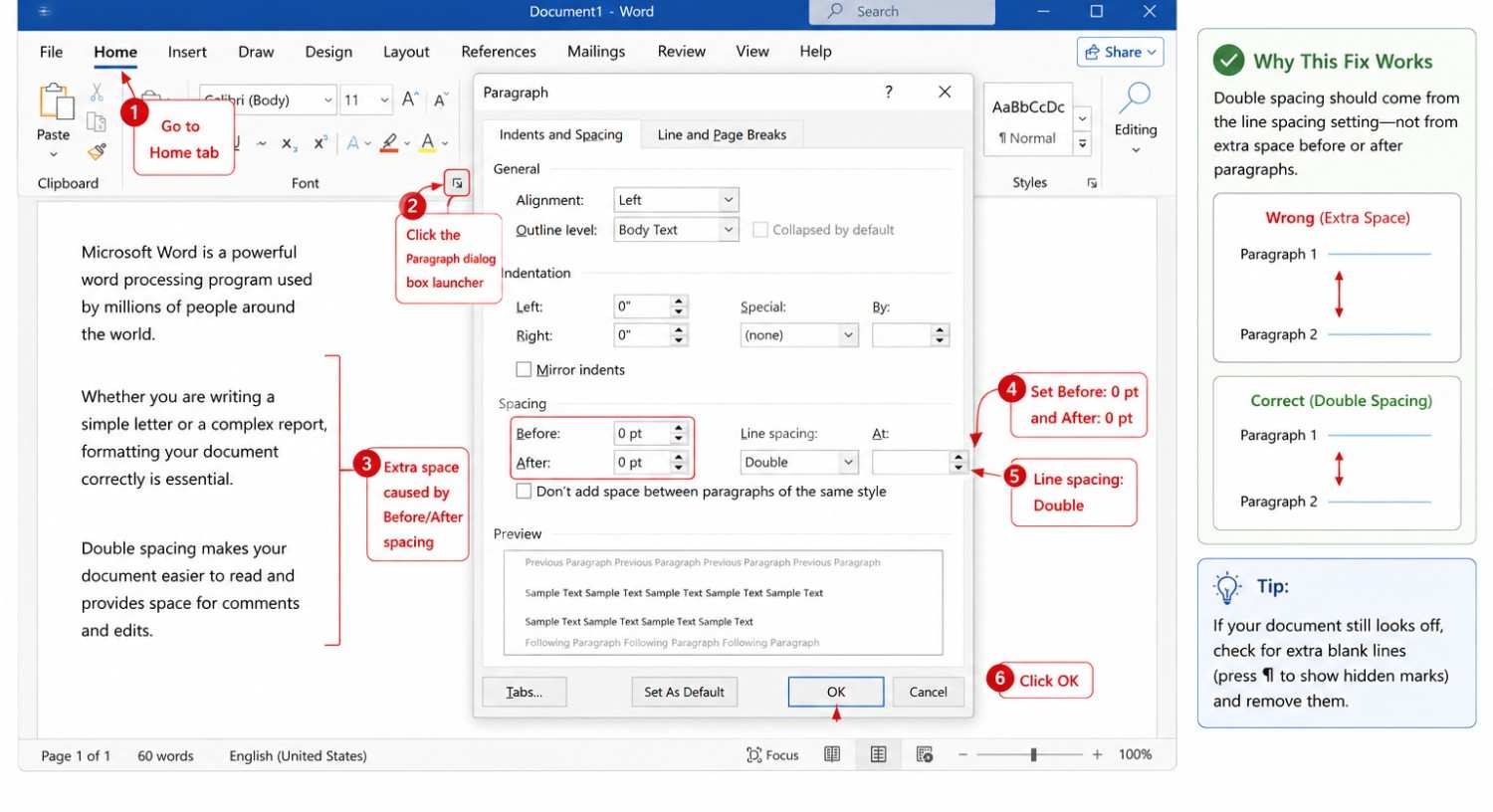
You select your text, choose Double, and the spacing still looks too large, uneven, or somehow off. Here is what is happening and how to fix it.
The cause is that line spacing and paragraph spacing are two separate settings, and they stack on top of each other. Line spacing controls the gap between lines within a paragraph. Paragraph spacing, controlled by the Before and After values in the Spacing group of the Paragraph dialog, adds extra space above and below each entire paragraph. This is also the setting that governs how to double space between paragraphs specifically, as opposed to spacing within them. The fix is straightforward once you know where to look. Open the Paragraph dialog box from the Home tab, and on the Indents and Spacing tab, find the Spacing group. Set both Before and After to 0 pt, and confirm Line spacing is set to Double. There is also a checkbox labelled "Don't add space between paragraphs of the same style," and ticking it prevents Word from inserting that extra gap between consecutive paragraphs. With Before and After at zero and line spacing at Double, you get true, even double spacing with no surprise gaps, which is exactly what a manuscript or academic submission requires.
Law firms and publishers hit this problem constantly because documents pass through many hands. Storing approved templates in Document Management Software stops the spacing from drifting every time a file changes owner.
Final Thoughts
Once you know where the controls live, how to double-space in Word takes only seconds, whether you reach for the Line and Paragraph Spacing button, the Paragraph dialog box, or the Ctrl+2 shortcut on Windows or the Cmd+2 on Mac. The same logic carries across every version and platform, from Word 2016 through Microsoft 365 and on to Word Online and the mobile app, so the skill transfers wherever you happen to be working. The one thing worth remembering is the distinction that trips most people up. Line spacing and paragraph spacing are separate settings, and when your document still looks wrong after choosing Double, the fix is almost always to set the Before and After values to 0 pt in the Paragraph dialog. Get that right, and your document meets the formatting standard the first time, with no surprise gaps and no reformatting later.