



Snapchat is not just a social media app to sit on; it's a fun and quick, interactive way to communicate with your companions by sending snaps that later become invisible, filters that add cute characteristics, and stories that ensure the ideas won’t fade away. Whether you are a beginner or already a pro at snapping, you will get to know everything you need to know about how to use Snapchat with the help of this guide. Besides getting the hang of all the unique features of the platform, you'll send yourself the first snap and thus, you will learn about how Snapchat works and why it is one of the most versatile platforms out there.
What is Snapchat?
Snapchat is a platform that allows its users to send in pictures, videos, and texts that disappear after a period of time which actually leads to a chat more spontaneous and interesting. It is one of the most widely used personal chat platforms, for creative content sharing and brand promotions, thus becoming an icon of the social media marketing software. Snapchat is one of the most powerful ways people can communicate with each other through the use of an interactive filter, a story, or an AR lens.
Although it may seem that, Snapchat is a social media platform so much information is available about Snapchat. The truth is that it is quite straightforward to approach, as users can take a snap, tweak it, and forward it in an instant. Composed of long Snapstreaks that represent the continuous involvement of the interactor, Snapstreaks are one of the most effective ways to meet the prearranged and consistent engagement rules.
How to use Snapchat?
Try using Snapchat by first getting the app from the store, then, register and invite friends. By pointing and clicking, make a photo or film and make it better by using filters, stickers, or text before you send it. Snaps must be sent in person or you can add it to your Story for 24 hours where it will be visible to everyone. One way that you can use Snapchat is to write a message that disappears, make Stories, and do group chats. Now, if one wishes to know what Snapchat is used for, the beauty of the app is that it is very popular for personal relationships, creative content, and the recently launched business deals. Learning how to use Snap effectively helps users be in touch with loved ones, reveal their own ideas, and have a good time through a social yet interactive experience.
Snapchat Features and Terminology
Snapchat has some quite specific features and terminology that distinguish it from others of its kind. This guide is useful for a beginner or someone who is using it but want to grasp the various functions as well as be able to find the key features and terms used on Snapchat.
1. Snap
Snap is a picture or video a user can share with a friend, then it vanishes after watching it. Snapchats can be improved using stickers, Snapchat emojis, text or drawing tools. In contrary to everyday messages Snaps are interactive and unpredictable ways to share memories leaving no footprint in digital history.
2. Group Snaps
Group Snaps is a feature that allows users to send Snaps to more than one friend at a time. The main difference between individual and group Snaps is that in a group chat, all the answers are shown to the participants. This functionality is ideal for keeping buddies updated, having fun in moments of joy, or also planning meetings together.
3. Chat
Snapchat's Chat feature is actually a messaging system but with a difference---its contents disappear unless saved before they are viewed. Through the app, users can send text messages, voice notes, photos, videos, or even request video calls. Snapchat also sends a message to users if anyone tries to take a screenshot of the chat.
4. Snapcode
One commonly used acronym in Snapchat chats is “TTM”, which means “Talk To Me.” It’s often used when someone wants to start a casual conversation or get attention from friends. For example, you might see a story captioned “Bored… TTM” — encouraging others to message. If you're wondering about ttm meaning snapchat, it's simply a friendly invitation to chat.5. Stories
Stories give users the possibility to share Snaps and to be viewed for 24 hours. In contrast to single Snaps, Stories might be seen more than once in the specified time frame. Businesses and influencers who use Snapchat Stories to stay connected with the audience by sharing backstage stories, making announcements, or exposing daily highlights are the best candidates.
6. Score
Snapchat assigns a numerical Score to each user based on their activity. The Score increases based on Snaps sent and received, Stories posted, and other interactions. While it has no direct benefit, many users see it as a fun way to measure engagement and compete with friends.
7. Snap Map
Snap Map allows users to share their real-time location with friends (if enabled). It also highlights public stories from different places worldwide. Users can choose to go into “Ghost Mode” if they don’t want their location to be visible.
8. Geo Stories
Geo Stories are Stories based on a specific location. Users in a certain area can contribute to a Geo Story, making it perfect for events, concerts, or travel experiences. These Stories help capture community experiences and trending moments.
9. Friends List
In Snapchat's Friends List users can browse through the list of their friends and engage with them where they can chat or send the Snaps and Stories. The platform is not like any other social media outlets, there isn't a traditional profile feed on Snapchat so the communications are limited to direct messaging and viewing the stories.
10. Snapstreak
A Snapstreak means that two people sent each other Snaps on every day during the given period. It is possible to see a fire emoji next to their name and the exact number of days since the last time the streak formed. In a case of not sending a Snap on a day, the streak will restart at zero, so it is a kind of fun challenge to your friends for maintaining it.
11. Filter
Filters are fun overlays that users can add to their Snaps. They include time stamps, color adjustments, weather updates, and event-themed designs. Filters can change based on the user’s location, time of day, or special occasions.
12. Geofilter
A Geofilter is a site-based filter showing up in the vicinity when users are currently in a certain area. Companies usually make personalized Geofilters to promote their brand and thus, the tool is effective in social media marketing software.
13. Lenses
Lenses are AR that the user is able to interact with from localization to the totality of their reality. You can turn your snaps funny and more creative using the latest Lens features. Certain lenses are awarded from businesses as a part of their advertising programs.
14. Memories
The Memories function is an attribute that permits people to hold on their Snaps and Stories rather than wiping them out. Individuals are able to re-absorb, modify, and/or share their saved content with the ease of it being saved, thus making the process simple for them.
15. Discover
Discover is a part of Snapchat where users are able to explore content from publishers, influencers, and brands. Users can also use Snapchat Story Viewer to explore public Snapchat Stories anonymously and discover trending updates, creator content, and brand stories without logging into the app. It contains news, entertainment, and trending stories, which automatically makes it an adored place for seeking diverse and qualitative content.
16. Trophies
Snapchat previously rewarded users with Trophies for completing milestones like sending a certain number of Snaps or using specific filters. While the Trophy case feature has been removed, Snapchat now offers “Charms” on friendship profiles to highlight unique interactions between users.
How to Create a Snapchat Account?
Setting up a Snapchat account is a quick and easy job. Carry out these straightforward steps to get deeper into the world of Snaps, Stories, and filters.:
Step 1: Download the Snapchat App
Get Snapchat from the App Store (on an iPhone) or the Google Play Store (on an Android), install it, look it up, and begin signing up.
Step 2: Tap on ‘Sign Up’
At first, you will see two choices on the welcome page. They are "Log In" and "Sign Up." Pick "Sign Up" and fill out all the registration details as you are opening a new account.
Step 3: Enter Your Name and Tap ‘Sign Up & Accept’
You will be asked by Snapchat to enter your first and last names. This is just for personalization, and you can always change your display name later. After entering your name, tap "Sign Up & Accept" to move forward.
Step 4: Set Your Birthday
To confirm your age on Snapchat, you have to provide your birth date. Certain functionalities are limited for users younger than a specific age, thus do not forget to fill in your birth date accurately. You should then click on "Continue."
Step 5: Choose a Unique Username
Your username is your Snapchat identity. Pick something unique because once it's set, you can’t change it. If your desired username is taken, Snapchat will suggest alternatives. Choose wisely, as this is how your friends will find you!
Step 6: Create a Strong Password
To have secure accounts, your password has to be eight characters long and consists not only of a combination of letters and numbers but also of a mix of symbols. It has to be something that you will be able to recall, but it needs hard for others to guess.
Step 7: Add Your Phone Number or Email
Snapchat will request you to provide a phone number or an email so to help you in the process of verification of the account and with the credential of your account password recovery also. You will be getting a verification code either via email or text—so put in that number to confirm your things.
Step 8: Find Friends on Snapchat
Snapchat will ask for permission to access your contacts. If you allow it, the app will suggest friends who already have Snapchat accounts. You can skip this step and add friends manually later if you prefer.
Step 9: Set Up Your Bitmoji (Optional)
Bitmoji integration on Snapchat allows you to create funny and unique avatar characters for your profile. You can now create one or bypass this step right now and decide to set it up at a later time.
Step 10: Start Snapping!
Congratulations! Your Snapchat account is ready. Explore the app, send Snaps, add filters, and start engaging with friends. Happy Snapping!
Sharing your Snapcode
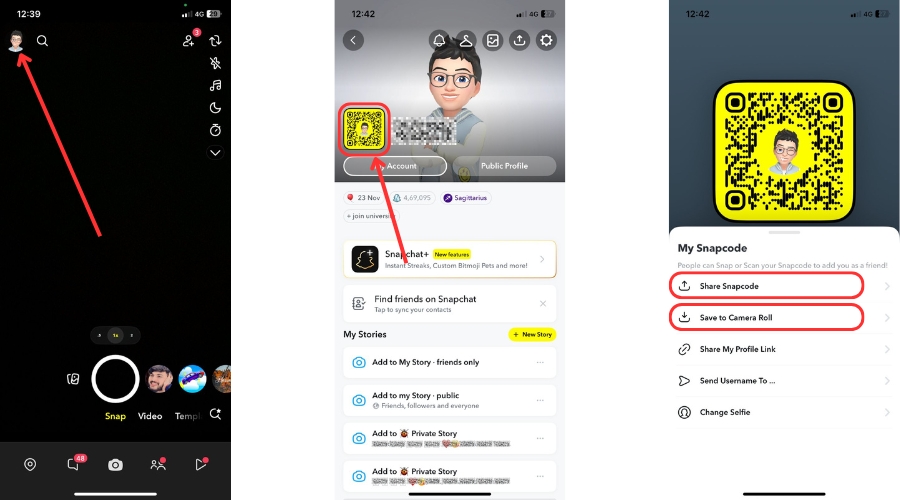
Your Snapcode is a Snapchat uniqueness identifier that is scannable, and the easiest means of adding friends. Here’s how to share it without any effort:
Step 1: Open Snapchat and Head to Your Profile
To start using Snapchat, just click on your Bitmoji or your profile icon with your finger or with a mouse if you are using it on a screen. By doing this, your profile appears right in front of you, the area where your Snapcode is.
Step 2: Find Your Snapcode
Your profile has a featured yellow-colored box with a dotted line pattern and inside it is your Bitmoji (ghost icon if it is not created by you). This is your Snapcode.
Step 3: Screenshot or Save Your Snapcode
Tap on your Snapcode, then select "Save to Camera Roll" to store it as an image. You can also take a screenshot directly from your profile.
Step 4: Share It Anywhere
Send your Snapcode to your friends through text, email, or social media. You can also set it as your Instagram bio or other places you want for quick connections.
Step 5: Let Others Scan It to Add You
Anyone can scan your Snapcode using Snapchat’s camera—just point, hold, and they can instantly add you to their friend list.
Accepting Friends
One of the very easy things to do is add new friends while on Snapchat. Adding makes it easier to send Snaps, talk to them, and share stories with them and thus you are closely linked. Here’s how to accept friend requests seamlessly::
1. Open Snapchat & Access Your Profile
You can get to your profile by tapping on your Avatar as shown in the upper left corner of the screen.
2. Go to the "Add Friends" Section
To access the "Add Friends" menu, navigate down to the bottom of the page. There, you will find the list of friend requests under "Added Me."
3. Accept a Friend Request
Next to each username, you’ll find an Accept button. Tap it, and just like that, you’ve added a new friend!
4. Start Snapping!
You have the ability to communicate through Snapchat after you add someone, send messages and view each other's Stories. If you don't know who sent the request, you could just tap the X button to ignore it.
How to Take a Photo or Video
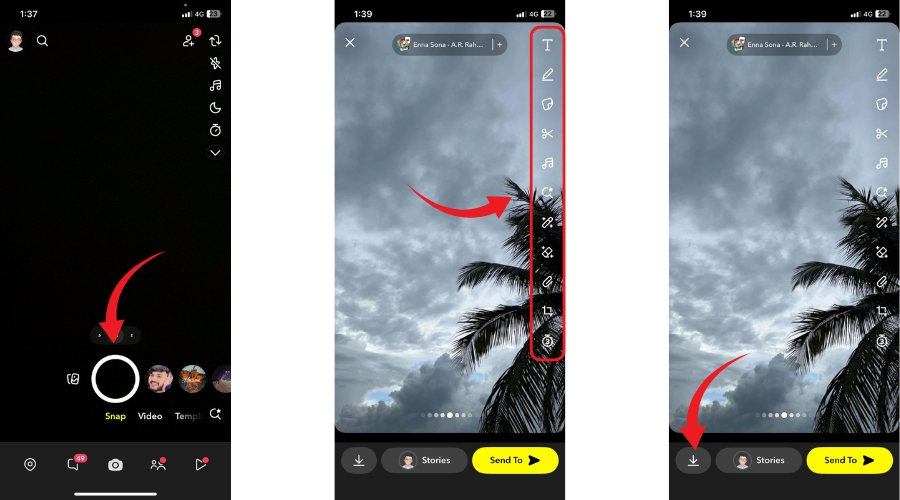
Creating moments or storing memories on Snapchat takes almost no effort. If you want to take a time-lapse photo and immediately share it, you just need to do these steps:
-
Open Snapchat
Launch the app, and the camera screen will appear by default, ready to capture your Snap.
-
Take a Photo
Tap the circular capture button at the bottom of the screen to snap a photo instantly.
-
Record a Video
Press and hold the capture button to start recording a video. Release it when you’re done. You can record up to 60 seconds in a single Snap.
-
Customize Your Snap
Add filters, stickers, text, or use Lenses for a creative touch before sending your Snap.
-
Save or Send
Click on the download icon to save it to Your Memories or your phone gallery. To share it, tap the arrow icon and select friends or add it to your Story.
How to Video Chat
Texting over Snapchat calls is a fun and engaging method to interact with friends on the spot. Learn this by practicing how to take part in a video chat:
-
Open the Chat Window
To video call a friend, swipe right from the camera screen, go to your chats, and then select the relevant friend.
-
Start a Video Call
In the chat, select the video camera icon to start the video call. Your friend can easily join if they are online.
-
Switch Between Video & Voice
You can turn the camera on or off during the call anytime you want by tapping the video icon again. In case you just want a normal audio call, please change to the phone icon instead.
-
Use Lenses & Filters
By making use of Lenses, Filters, or Bitmoji reactions will add more joy to your chat conversations.
-
End the Call
After you've finished talking, just touch the red icon to disconnect the call.
How to Use a Filter
Using filters on Snapchat is a cool and artistic way to add to your snaps. Let’s see how you can do this easily:
1. Capture a Snap
First, you have to start with opening Snapchat, then either take a photo or a video by clicking or holding the capture button until the required picture or video is captured.
2. Swipe to Explore Filters
After taking the snap, swipe left or right on the screen to browse through different filters, including color effects, time stamps, weather updates, and location-based Geofilters.
3. Stack Multiple Filters
Want to use more than one filter? Hold one finger on the screen while swiping with another to layer multiple effects.
4. Use Interactive Filters
Some filters let you add Bitmoji, special effects, or even live animations to your snap for a more engaging touch.
5. Send or Save Your Snap
Once satisfied, tap Send to share with friends or Save to keep it in your Memories.
How to Use a Lens
Snapchat Lenses make your snaps more fun with movable objects of different shapes, augmented reality effects, and interactive parts. Here’s how to use them:
1. Open Snapchat Camera
Launch Snapchat and ensure you're on the camera screen.
2. Activate Lenses
Tap and hold your face (for selfies) or a friend’s face (for rear camera mode) until a row of lenses appears at the bottom.
3. Browse and Select a Lens
Swipe left or right to explore different lenses, including face filters, 3D effects, and AR objects.
4. Follow Lens Instructions
Some lenses may prompt actions like raising your eyebrows, opening your mouth, or moving your head to trigger special effects.
5. Capture Your Snap
Tap the capture button for a photo or hold it for a video while the lens effect is active.
6. Send or Save
Once you're happy with your snap, tap Send to share it with friends or Save it to your Memories.
Snapchat Icon Meanings
Snapchat uses different icons to indicate the status of your snaps, messages, and interactions. Here’s what each one means:
1. Sent Icons
When you send a snap or chat, different colored arrows indicate its status. A red arrow means you sent a snap without audio, while a purple arrow means it includes audio. A blue arrow signifies a sent chat message, and a grey arrow appears if the snap or chat is pending, usually because the recipient hasn’t added you back.
2. Received Icons
These icons show that you’ve received a snap or chat. A red square means a snap without audio was received, while a purple square means it had audio. If you get a blue square, it indicates a received chat message, and a grey square appears for pending messages from someone you haven’t added back.
3. Viewed Icons
Once you open a snap or chat, the icons change to a hollow version. A hollow red square means you’ve viewed a snap without audio, and a hollow purple square means you’ve viewed one with audio. A hollow blue square shows that you’ve read a chat message.
4. Opened Icons
When the recipient opens your snap or chat, the solid arrows change to hollow versions. A hollow red arrow means your snap without audio has been opened, a hollow purple arrow means your snap with audio has been opened, and a hollow blue arrow means your chat has been opened.
5. Replay Icons
If someone replays your snap, a red circular arrow appears for a snap without audio, while a purple circular arrow indicates a replayed snap with audio.
6. Screenshot Icons
If someone takes a screenshot of your content, Snapchat alerts you with double arrows. A red double arrow means a snap without audio was screenshotted, while a purple double arrow means the snap had audio. If a chat message was screenshotted, a blue double arrow appears.
Conclusion
Mastering Snapchat is all about experimenting with its features and having fun while doing it. Whether you're using it to stay in touch with friends, share your day through stories, or even explore its potential for Snapchat uses, the app offers endless possibilities. Now that you know how to use Snapchat, it’s time to start snapping, chatting, and exploring all the cool things this app has to offer. So go ahead—snap, share, and enjoy!