

Screenshot monitoring is one of the most talked-about features in time tracking software, and also one of the least understood. Managers tend to see it as proof of work. Employees tend to see it as a camera pointed at their desk. In most cases, both reactions come from the same place: nobody has actually explained what the feature records, or why.
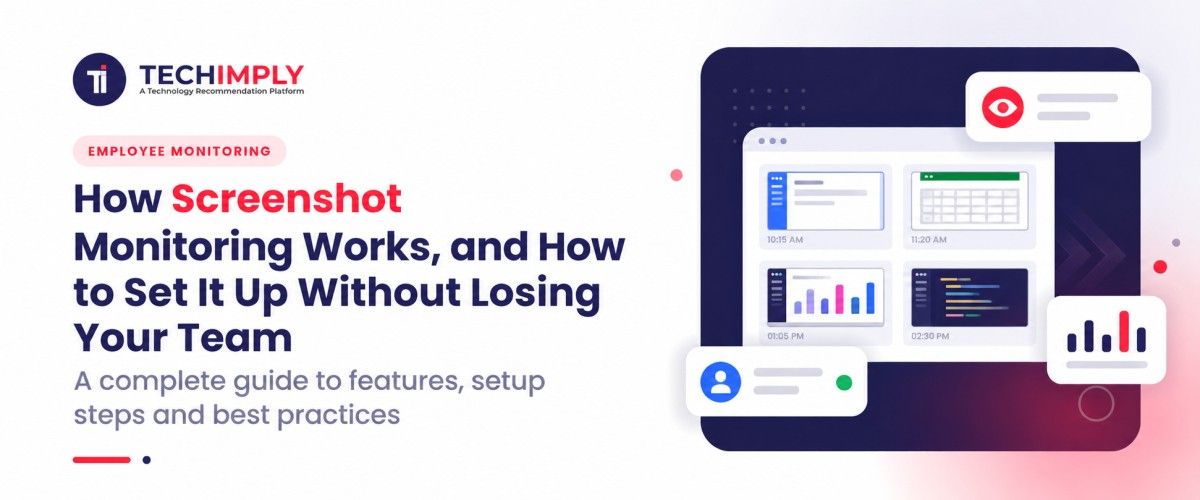
A time tracker with screenshots captures the screen at set intervals while the timer is running, typically every 10 minutes. Alongside each capture, it logs the apps and websites in use and records an activity level based on keyboard and mouse frequency. That last part matters more than it might sound. The software counts how often keys are pressed and the mouse moves, not what a person actually types.
What a manager gets at the end of the day is a timeline, not a live feed. Each block of time carries a screenshot, the apps behind it, and an activity level, so the hours can be checked when a question comes up, rather than taken on trust or argued over weeks later when nobody remembers the day in question.
The three screenshot modes
Most screenshot tools offer three ways to capture the screen, and each one is built for a different kind of work.
Clear screenshots show the full screen in readable detail. They're used where the image itself is the proof, such as confirming work for client billing or checking that hours went to the right task.
Blurred screenshots are taken on the same schedule, but the text and details on screen can't be read. A manager can still see that a spreadsheet or a code editor was open, without seeing the figures or the code inside it. That makes blurring the natural fit where sensitive data sits on screen day to day, such as finance, healthcare, and legal.
Silent capture runs in the background without pop-ups or notifications, and it's meant for company-owned devices where a written policy already covers it. Silent doesn't mean secret- it just means the person isn't interrupted every time a capture is taken.
Frequency is a separate setting from the mode. Most teams stay at one screenshot every 10 minutes, while high-security work can go up to one every minute. WebWork Time Tracker, for example, offers all three modes and lets a company set the frequency anywhere in that range.
Who uses it and why
Screenshot monitoring tends to show up in four kinds of teams, and the reason behind it is similar in each.
Software and web development teams use it when they bill hours to clients. A client paying by the hour wants more than a monthly total, and screenshots tied to tasks show the work behind that number.
Marketing and design agencies use it to prove work on retainers. When a client asks where the retainer hours went, the timeline answers the question, rather than a long email thread trying to reconstruct the month.
BPO companies and call centers use it for shifts on shared machines. Several people may sit at the same computer in a single day, and the record shows who worked which shift, and on what.
Remote and hybrid teams use it across time zones. A manager in one country can't walk past a desk in another, and in many cases the timeline does the job that walk used to do in an office.
In each case, the screenshot isn't there to watch people. It's the proof attached to the hour, something a client, a manager, or the employee can point to when the hours are questioned.
What the law asks for
In most places, screenshot monitoring is legal when the employer notifies staff and gets their consent before it starts. The exact rules differ by country and state, so local employment law is the real starting point, not whatever the software's default settings happen to be.
Notice and consent are the legal floor, though, not the whole picture. A few settings make monitoring much easier to defend if it's ever challenged. Employees can see which mode applies to them, whether clear, blurred, or silent. They can view their own screenshots, the same ones a manager sees. And they can delete their own screenshots, if the company chooses to allow it.
Retention is the company's decision. How long screenshots are kept should be written into the policy, rather than left at a default nobody chose. A shorter period means less data to protect, while a longer one may suit teams that bill clients and need records if a dispute comes up later.
Where the data goes matters as much as what's captured. Teams with staff or clients in Europe, California, or healthcare should check that the provider handles data under GDPR, CCPA, and HIPAA before switching anything on.
Setting it up without losing the team
The technical setup takes very little time. Trust takes longer, and it's usually won or lost before the feature is ever switched on.
Pick the mode per team, not per person. If one developer gets clear screenshots and the next gets blurred, people will assume the difference is personal, whereas a rule that covers the whole team reads as policy.
Write the policy before switching it on. It should say what is captured, how often, who can see it, and how long it's kept.
Blur by default where client data is on screen. Most managers don't need to read a client's figures to confirm the work happened, and blurring protects the client and the employee at the same time.
Review reports weekly, not screenshots daily. Activity trends and hours by project tell a manager far more than scrolling through images one by one, and the screenshots stay there for the specific question that comes up.
In practice, the difference between screen monitoring software that employees accept and software they resist is rarely the software itself. The version people accept is configured to a privacy policy they've read. The version they resist is switched on without one.
Where it's going
The direction is fairly clear: fewer people reading screenshots, and more software reading the activity around them. The images still get captured, they just stop being the first thing anyone looks at.
Monitoring tools now flag unusual activity, so a manager looks at the one irregular day rather than every day in the month. They flag signs of burnout and overload, such as working hours that keep stretching later, before the problem shows up as a resignation letter. Some also draft daily standups from the day's tracked data.
The newest step removes the report altogether. Through an MCP server, AI assistants such as ChatGPT and Claude can query monitoring data directly. WebWork added this so a manager can simply ask a question, rather than opening a dashboard, filtering by team, and exporting a report.
Screenshot monitoring started as a camera on the desk, at least in the minds of the people being recorded. Today, a manager on a Monday morning can ask an assistant which people on the support team look overloaded this month, and get a short list back without opening a single screenshot. The camera is still there- it's just no longer the thing anyone is looking through.

.jpg "How to Choose the Best Free CRM Software for Your Business")